

VM Viewers
Every VM console in Rogue Arena runs in your browser through one of two viewers. Both give you the full desktop or terminal, keyboard, mouse, clipboard, and file transfer. They differ in how the picture reaches you.
| Guacamole (Default) | WebTransport (Experimental) | |
|---|---|---|
| Picture | Screen updates sent as images | GPU-encoded video, up to 60 fps |
| Feels like | Solid and reliable on any network | Smooth, low-latency, closer to sitting at the machine |
| Network | Standard HTTPS | Needs outbound UDP port 443 |
| Browser | Any modern browser | Chrome or Edge 97+, Firefox 114+ |
| Extras | Toggle Performance Stats overlay |
Guacamole is the default and works everywhere. Use it on locked-down networks, older browsers, or when you just want it to work.
WebTransport is our high-speed protocol. The VM’s screen is encoded as video on a GPU and streamed to your browser over QUIC, so scrolling, video, and fast-moving desktops stay fluid. Try it when you’re doing GUI-heavy work.
Switching Viewers
Section titled “Switching Viewers”- Open any VM console.
- Click the … button at the top right of the console window, next to the window controls.
- Under Display, pick Guacamole (Default) or WebTransport (Experimental). A checkmark shows the active viewer.
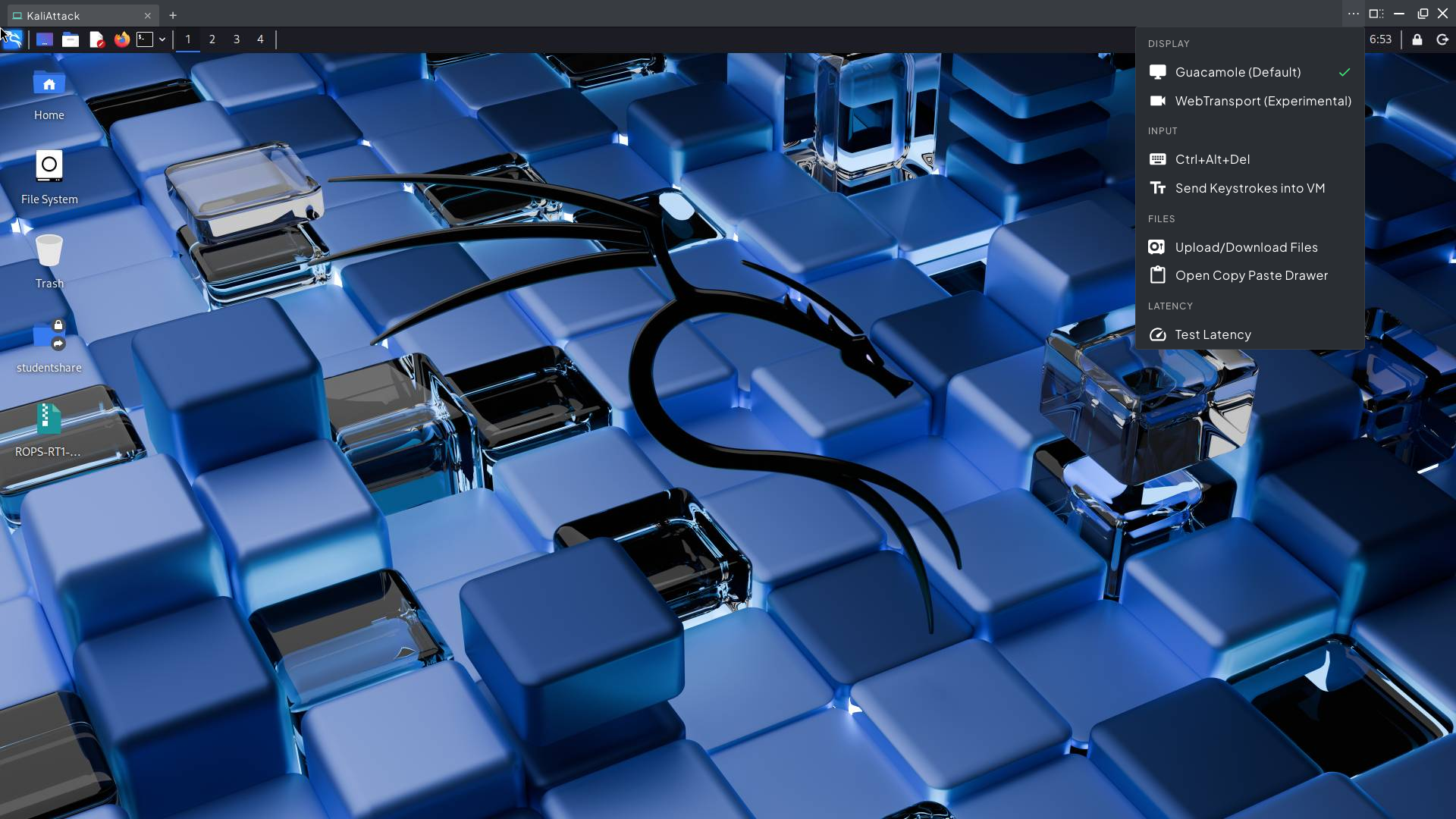 The console menu. Pick a viewer under Display; the checkmark marks the active one.
When you pick WebTransport, Rogue Arena first runs a quick connection check. If it passes, the console switches over and every VM window in that browser uses WebTransport from then on. Your choice is saved in the browser, so another computer starts on Guacamole.
Automatic Fallback
Section titled “Automatic Fallback”If WebTransport can’t connect, you stay on Guacamole and see “Trouble connecting to WebTransport server, failing back to Guacamole VM viewer”. The same happens if a WebTransport console keeps dropping: after several reconnect attempts that window falls back to Guacamole on its own, without changing your saved choice.
The usual cause is a network that blocks UDP. Corporate firewalls, some VPNs, and hotel or conference Wi-Fi often do. Guacamole works fine there.
Menu Options in Both Viewers
Section titled “Menu Options in Both Viewers”The … menu has the same tools in both viewers:
- Ctrl+Alt+Del: send the key combination your local machine would otherwise catch
- Send Keystrokes into VM: types text for you, for consoles that don’t take a normal paste (a bare TTY or a boot screen)
- Type Password into VM: types the machine’s password for you. It only appears when the lab’s author set a password for that machine.
- Upload/Download Files: see File Upload & Download
- Open Copy Paste Drawer: a text box for moving clipboard text in and out by hand
- Test Latency: measure the round trip between you and the VM
Watching Someone Else’s VM
Section titled “Watching Someone Else’s VM”When you open a VM someone else is driving (a shared deployment, a teammate, or a guest link), the menu adds a Guest section. The owner’s screen size stays fixed, and you can set your own view size and turn your input off so you watch without typing into their session. In Guacamole these are Set Resolution and Turn Input Off/On; in WebTransport they are Resize Display and Enable Read-Only Mode.
Good to Know
Section titled “Good to Know”- Neither viewer plays VM audio.
- Both work with graphical desktops and text-only consoles on any operating system.
- A console left idle for a long time disconnects for inactivity. The VM itself keeps running; reopen the console to pick up where you left off.