

Active Operations
The Active Operations tab shows, in real time, every environment that’s currently deployed and what your team members are doing inside each one.
Required role: Org Manager
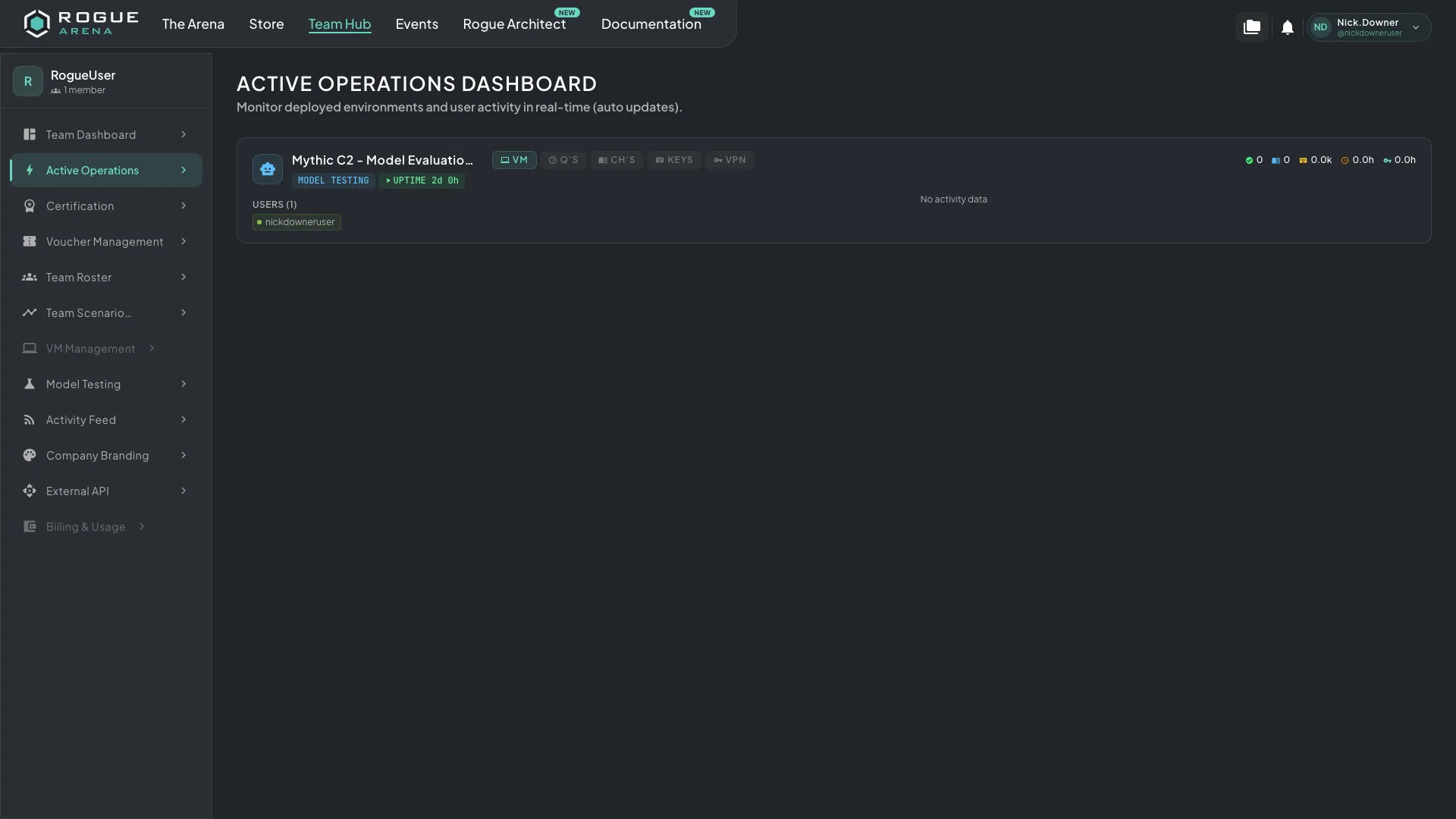 Active Operations shows every deployed environment and what team members are doing inside it, as it happens.
Operations Overview
Section titled “Operations Overview”When you open Active Operations, you see a grid of cards, one for each active deployment. Each card shows:
- Environment name and type
- Uptime: how long the environment has been running
- Assigned users and their current activity
- Progress metrics: questions answered and chapters completed
Real-Time Activity Monitoring
Section titled “Real-Time Activity Monitoring”Active Operations uses live WebSocket updates to show what’s happening right now:
- VM Activity: which users are using their virtual machines
- Keystrokes: activity level indicators that show engagement
- Questions: task completions as they happen
- Chapters: section progress as it happens
- VPN Usage: who is connected over VPN
You can filter the view by metric type to focus on the ones you care about.
Operation Detail View
Section titled “Operation Detail View”Click an environment card to open a detail view with:
- Environment card: the same card from the grid, with its per-user activity chart, updating live as users answer questions, unlock chapters, and work in their VMs.
- Users: everyone assigned to the deployment.
- Curriculum Progress: progress section by section and chapter by chapter, showing:
- Which questions each user has completed
- Which chapters are unlocked
- Overall completion percentage
- Question Detail: click a question to see its type, how it’s answered, and each user’s answers. It covers every question type (Short Answer, Long Answer, Multiple Choice, File Upload, Multi-Select, Matching, Ordering, Diagram Selection, Machine Action, and Branching Dialog). For each attempt you see:
- What the user submitted
- The graded result: correct, partial (with the partial-credit score), incorrect, or in progress
- Timestamps for each submission
- Deployment VMs & Files: the deployment’s VMs and files. This panel needs the Lab Admin permission; other Org Managers see the progress without it.
Collaboration Features
Section titled “Collaboration Features”If a scenario has Team Collaboration turned on, the detail view shows how the team is working together:
- Chapter unlocks shared across team members
- Whether chapters can be completed in any order
- Combined team progress toward unlocking new content