

Platform Chat
Rogue Arena includes a built-in chat (Rogue Chat) that lives on the arena home alongside your scenario. Use it to message teammates, start a group chat, or follow your team and community channels, all without leaving the platform.
The Chat Panel on the Dashboard
Section titled “The Chat Panel on the Dashboard”The chat panel sits on the right side of the arena home screen. It lists your team, your conversations, and your communities, all visible the moment you log in.
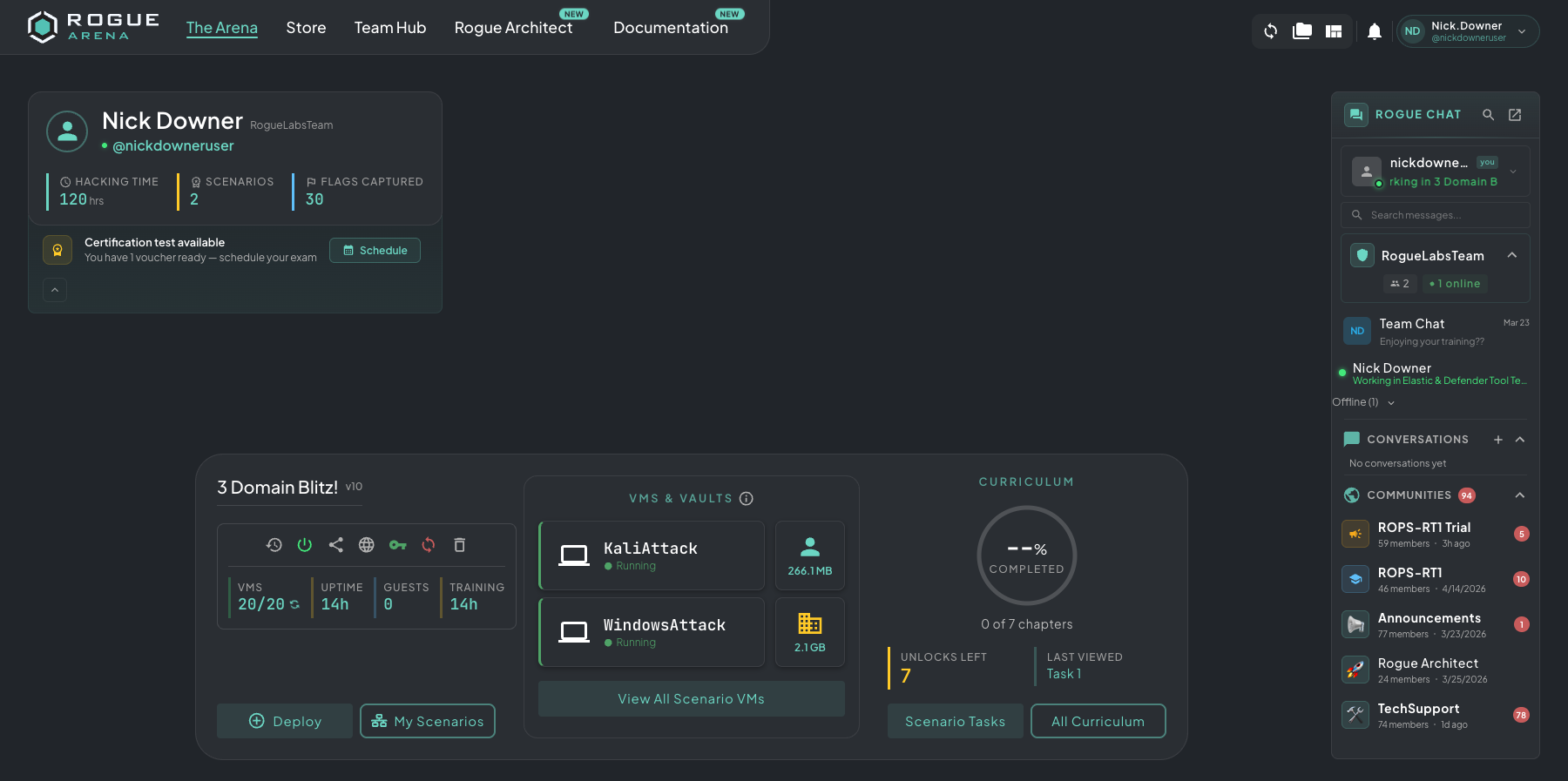 The Rogue Chat panel docked on the arena home. Every conversation and room you have access to is one click away.
Opening Chat
Section titled “Opening Chat”Click any conversation in the panel to pop it out into a chat window. The window floats over your workspace so you can keep messaging while a VM is open.
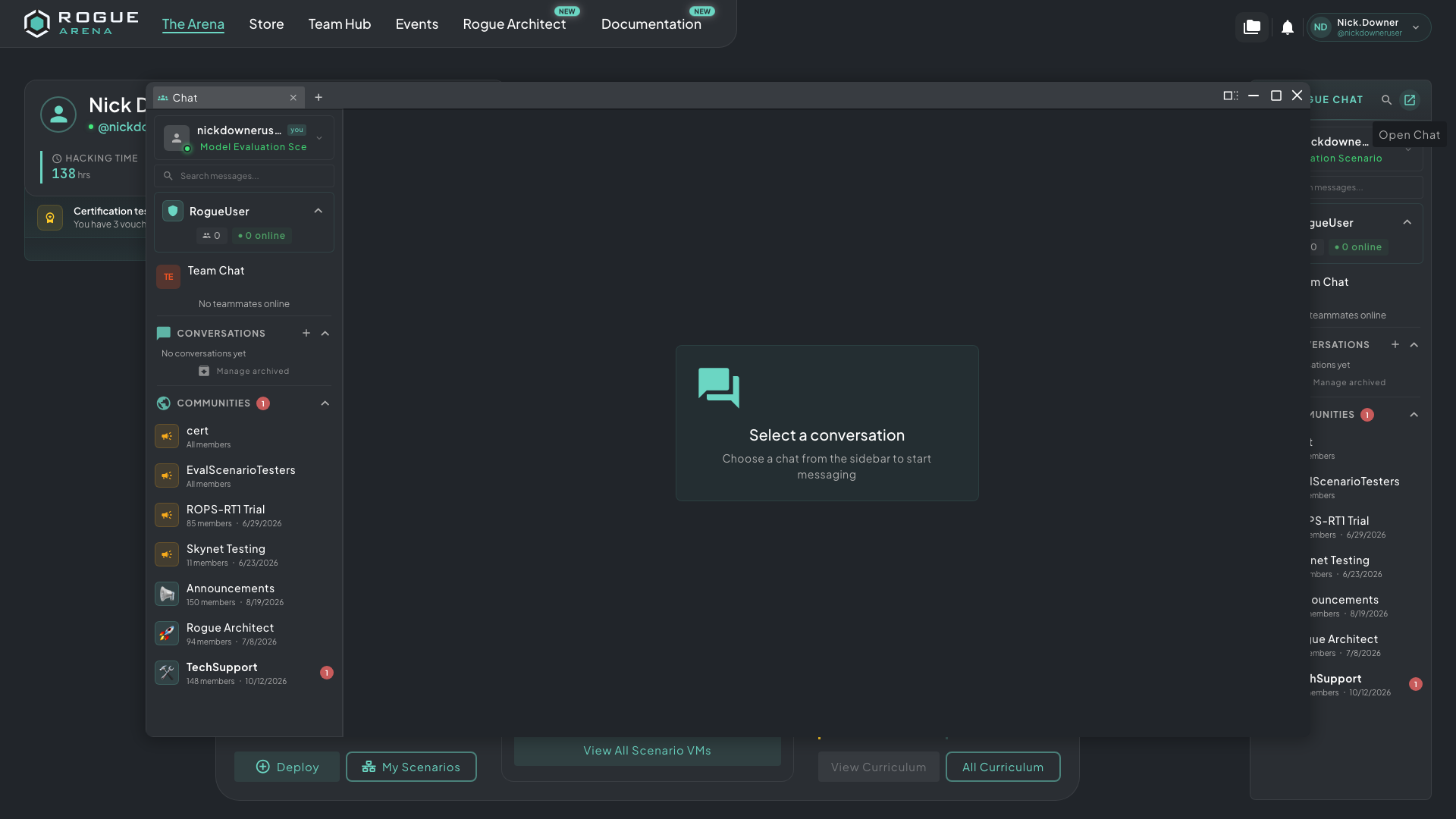 Chat opened as a floating window, with the dashboard still visible behind it.
Chat Categories
Section titled “Chat Categories”Rogue Chat groups your threads into these sections:
- Team: your team’s name heads the panel, with your team chat at the top and your online and offline teammates below it.
- Favorites: any thread you’ve favorited. Right-click a thread and choose Add to Favorites.
- Conversations: direct messages and group chats with your teammates. Click the New conversation button, pick Direct Message or Group Chat, and use Search teammates… to find people. Click Show all to see every conversation, then Manage archived to bring back ones you’ve archived.
- Communities: distribution-group channels, rooms for events you’re registered for, and staff channels. Some channels are read-only and show Only staff can post in this channel.
Features
Section titled “Features”- Real-time messaging: messages appear right away for everyone in the room.
- Unread badges: counts on the chat icon and on each conversation, so you don’t miss updates while focused on a VM.
- Persistent history: messages are kept, so you can jump back into a conversation weeks later and the thread is still there.
- Image pastes: paste screenshots directly into the message box for over-the-shoulder debugging.