

Viewing Curriculum
The Curriculum Widget
Section titled “The Curriculum Widget”When you deploy a scenario that has curriculum, the Curriculum panel appears in the lower right of your arena home screen. Without opening the full viewer, you can see your progress through the scenario on this run: chapters completed, unlocks left, and the last chapter you were in.
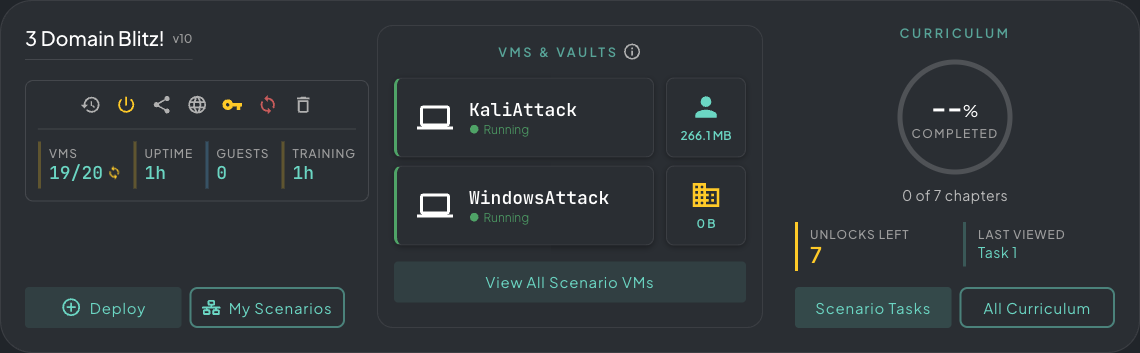 The Curriculum widget: completion percentage, unlocks left, and a shortcut back to the last chapter you opened.
From the widget, you can go straight to Scenario Tasks (the objectives tied to your active deployment) or open All Curriculum to browse all available courses.
Viewing Scenario Curriculum
Section titled “Viewing Scenario Curriculum”Click Scenario Tasks in the widget to open the full curriculum viewer. The viewer floats over your workspace. Click the maximise button in its top-right corner to go full-screen.
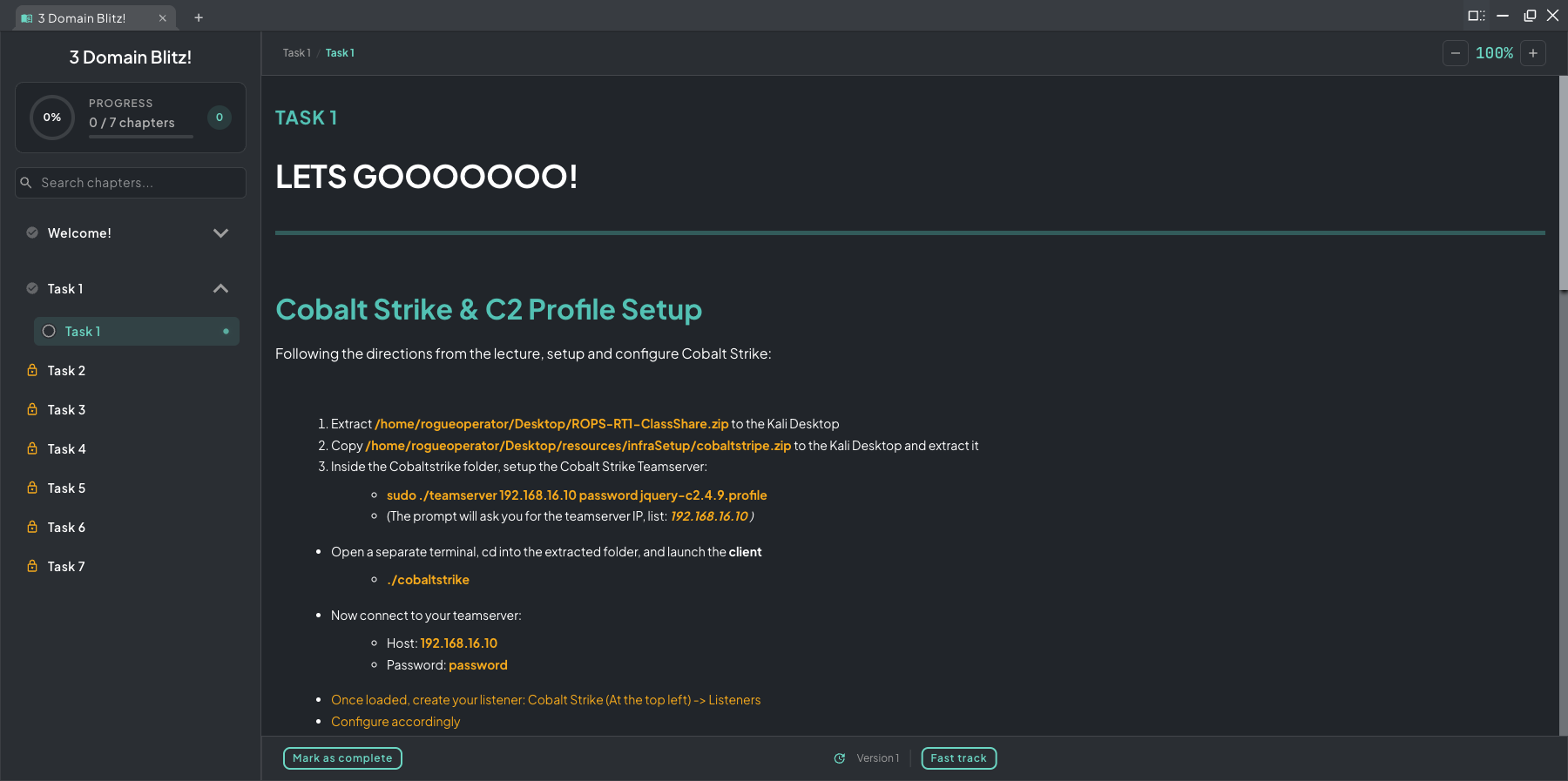 The curriculum viewer, maximised, with the chapter list on the left and the task content and inline questions on the right.
Content is organized into chapters and sections of written guides, videos, objectives, and inline questions. How chapters unlock depends on the course type:
Linear Curriculum
Section titled “Linear Curriculum”Chapters unlock in order. Complete the objectives and answer the questions in one chapter to unlock the next. The chapter list on the left shows your progress: completed chapters, the active section, and upcoming locked chapters.
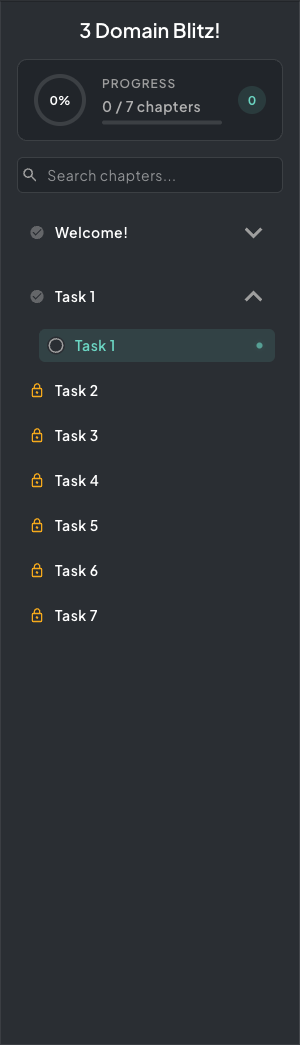 A linear chapter list. Completed chapters are ticked off, the active chapter shows its progress, and locked chapters wait their turn.
Question types:
- Short Answer and Long Answer: type your answer or paste a captured flag, then submit.
- Multiple Choice: pick one answer.
- Multi-Select: pick every answer that applies.
- Matching: pair each item with its match.
- Ordering: put the items in the right order.
- Diagram Selection: click the right spots on a diagram.
- File Upload: upload a file as your answer.
- Machine Action: do the task in the lab, then click Check Machine State so the platform checks the VM. These need an active deployment.
- Conversation: work through a branching dialog by choosing your replies.
Each question appears as a card in the lesson. Click the card to answer it in place, or click its square button (Open in side panel) to answer it in a panel beside the lesson. The side panel needs a wide enough course window. One question is open at a time.
The author decides whether you get one try per question or can retry, and may hide results until the end. See How Progress Is Tracked.
CTF Curriculum
Section titled “CTF Curriculum”CTF-style courses use a node graph in place of the chapter list. Some nodes are open by default, and the rest unlock as you complete their prerequisites. Completing one node can unlock several others, so several paths run in parallel and you choose your route.
As you progress, you see only the next layer of nodes. Everything beyond is hidden by a fog of war until adjacent nodes unlock.
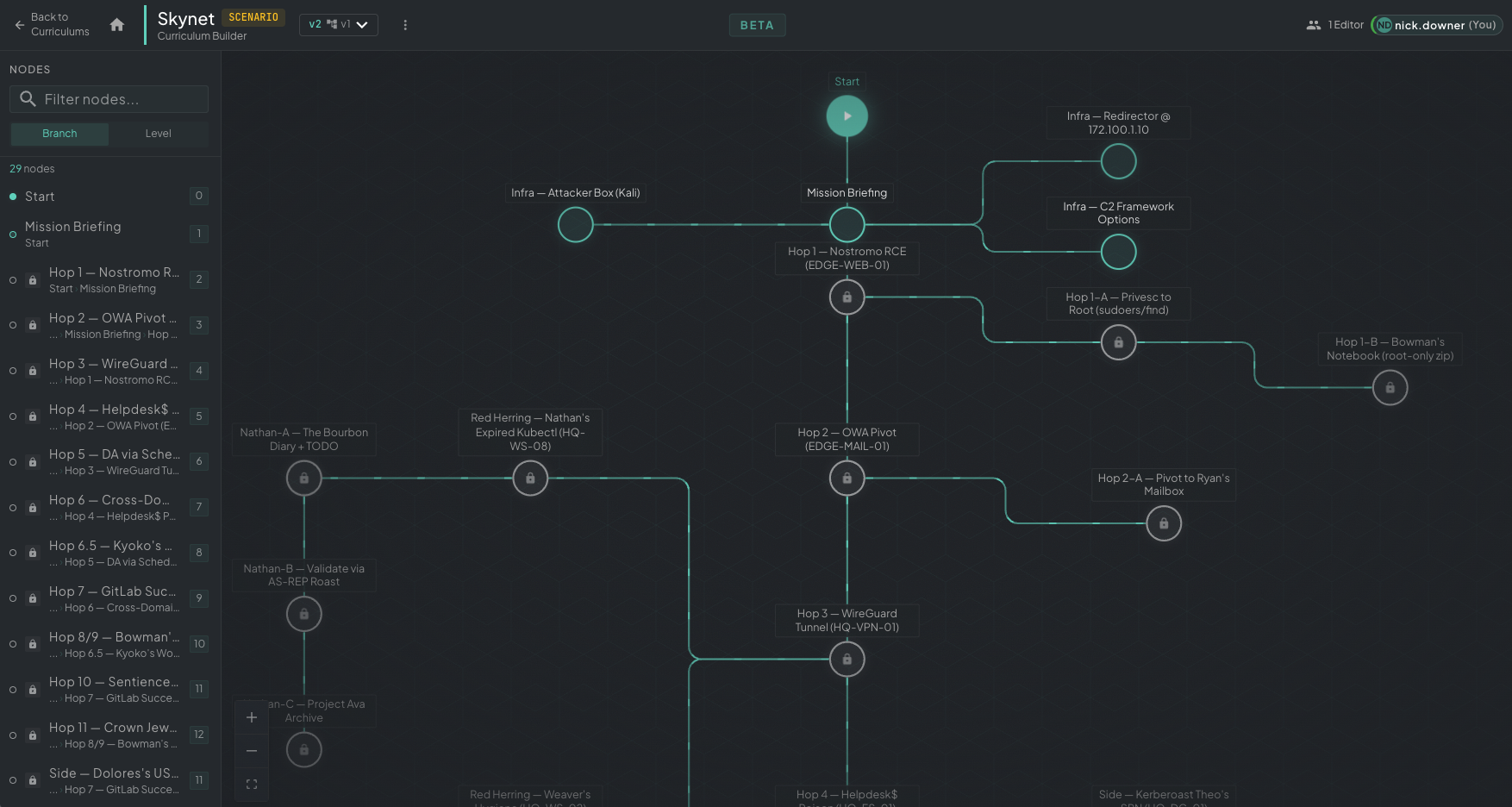 A CTF graph in the Architect curriculum builder, showing the full structure. In play, you see only the nodes next to your progress, and fog of war hides the rest.
Unlocks work the same way as linear flag unlocks. Click the locked node, read the hint to find the key in the lab, then paste the unlock code to open the node.
Split View
Section titled “Split View”Use the Snap Layout menu to pair the curriculum viewer with a VM console, with the lab on the left half and the task on the right. You can read the question and do the work without alt-tabbing.
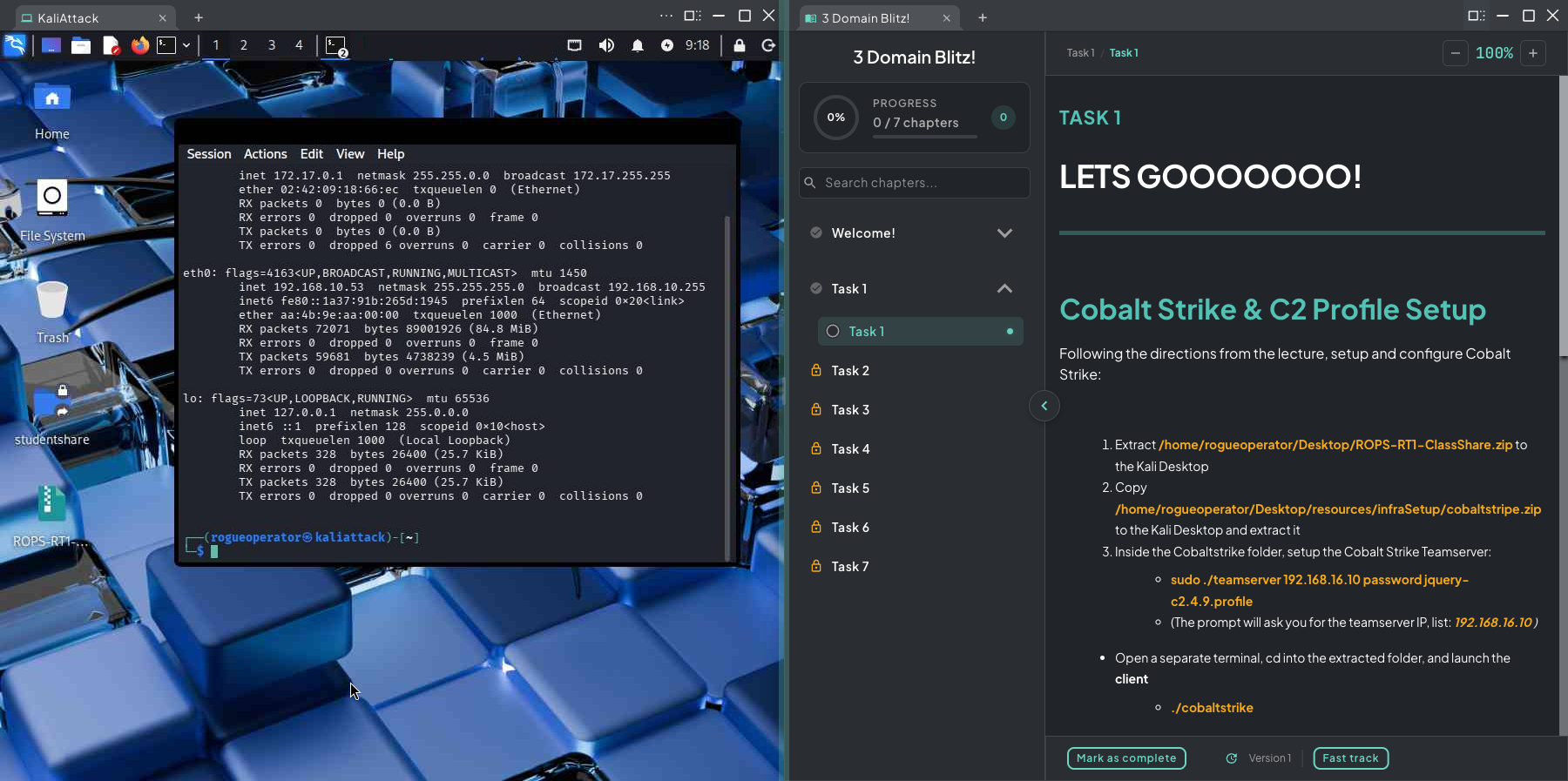 Kali snapped to the left and the curriculum to the right, so you can work the lab and read the task side by side.
Flag Unlocks
Section titled “Flag Unlocks”Some chapters are locked behind a flag you earn inside the lab. When you click a locked chapter, the platform shows a hint that tells you exactly where to find the unlock key: a file path, a command to run, or an artifact to retrieve from the environment.
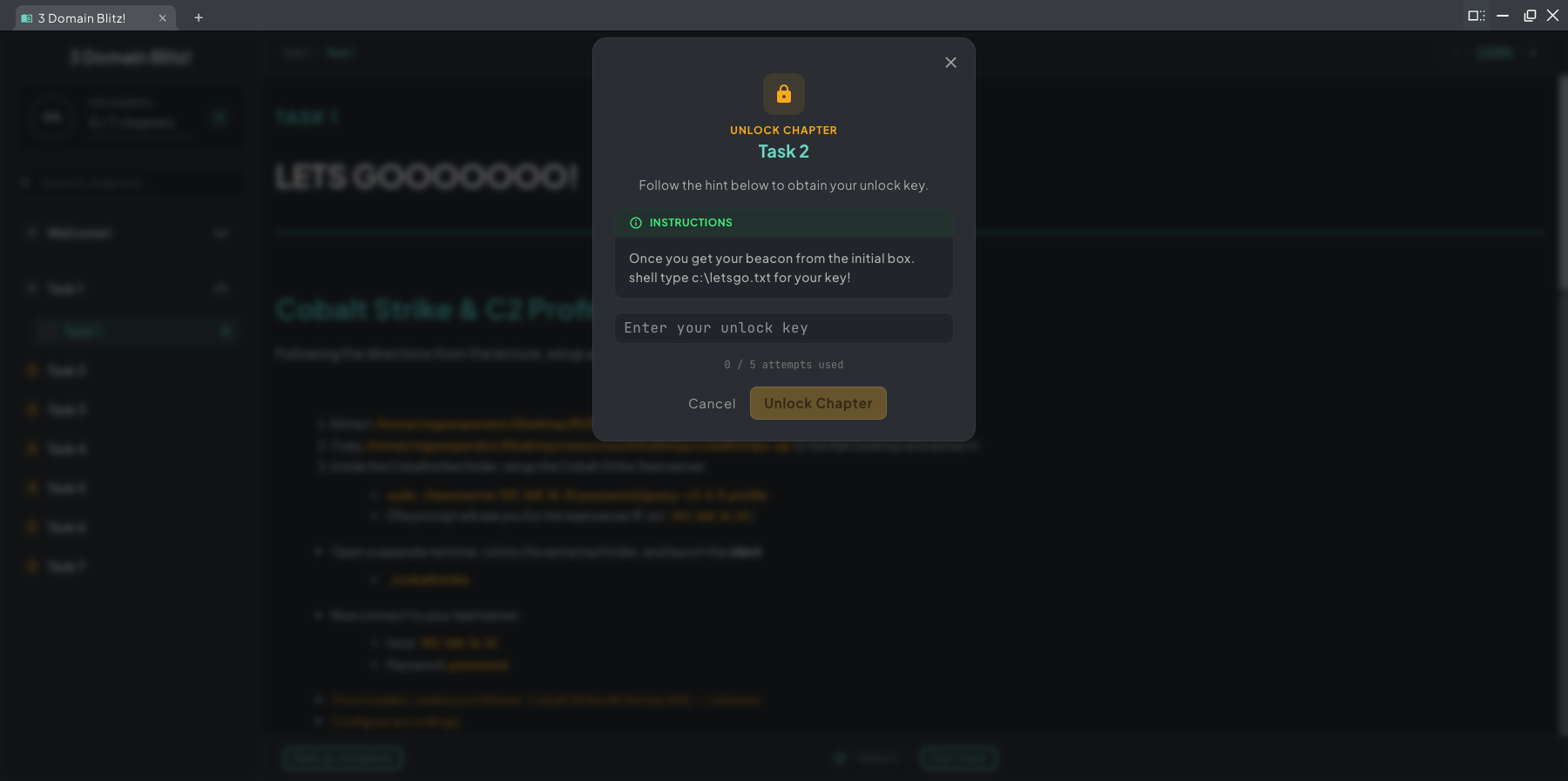 The locked chapter prompt. Read the hint to find the flag in the lab, then paste the key to unlock the chapter.
When you have the key, paste it into the field and click Unlock Chapter. You get a limited number of attempts, so read the hint carefully before you submit. This ties your progress through the course to your hands-on work in the lab.
Flag unlocks gate student progression. Learners can’t skim through a scenario: they have to complete the hands-on work to find each key and move forward. This gives managers and instructors a verifiable, paced view of how a student is progressing through the labs.
Unlock keys are salted per learner, so students can’t share keys with each other. A key that works in one student’s deployment won’t work in another’s.
Paid Hints
Section titled “Paid Hints”Some locked chapters and CTF nodes offer paid hints in the unlock prompt, under Paid Hints. You pay for them with curriculum points. You earn points by unlocking locked chapters and nodes, when the course’s author has turned on Points Economy and set a point value for them.
- Your Balance shows how many points you have.
- Hints unlock in order. The next hint’s button shows its cost, for example Reveal · 50. Later hints show Locked.
- If you don’t have enough points, the button is greyed out and shows how many more you need.
To buy a hint, click Reveal. The prompt asks, for example, “Spend 50 points to unlock Hint 2?” and shows your balance after unlocking. Click Spend 50 points to confirm, or Cancel. An unlocked hint shows View Hint, and reading it again is free. Click Back to unlock to return to the key field.
Fast Track
Section titled “Fast Track”After you unlock a locked chapter with its key, its footer may show Fast track next to the version number. It appears in a running lab when the author tied the chapter’s unlock key to machines in the scenario. Fast Track runs a file of yours on those machines.
- Put the file in the
auto_execfolder on the StudentShare (\\172.40.1.40\studentshare\auto_exec). - Click Fast track, enter the full file name (for example
payload.exe), and click Go.
Rogue Arena copies the file to each of those machines and runs it, then lists the result for each: executed successfully, file not found, machine offline, unsupported on this machine, or the error. Fast Track runs on Windows machines only; other machines show as unsupported.
How Progress Is Tracked
Section titled “How Progress Is Tracked”The course’s author chooses how your progress is counted. To see the rules for the course you’re in, click the info icon next to Progress above the chapter list, or on the Curriculum widget. Your progress opens with How this course is tracked at the top, followed by your progress toward the goal, what’s left, and counts such as questions answered and locked chapters unlocked.
| Tracking mode | You complete the course when |
|---|---|
| Mark as complete | Every chapter is marked complete. Click Mark as complete at the bottom of each chapter when you finish it. |
| Locked chapters | Every locked chapter is unlocked with its key. |
| All questions answered | Every question is answered. If there’s a pass mark and retries are allowed, your score must also reach it. |
In the other two modes, Mark as complete is your own checklist. It doesn’t count toward finishing the course.
When the course counts answered questions, the author can also set:
- In order: answer the questions in course order. Skipping ahead shows a message such as “Finish question 3 of this course first”.
- One try or retries: with one try, your first answer is final. With retries, your latest answer counts.
- Results hidden until the end: question cards say Answer recorded in place of the result, and you see your score when you finish. Hidden results always mean one try per question.
- Pass mark: the score you need, shown as “Pass mark: 80%”. While results are visible, your progress shows your current score.
When you finish, Curriculum complete opens. It shows your score and Passed or Failed against the pass mark, or, for a course without a score, that you finished every part of it. The result also stays on your progress card.
All Curriculum
Section titled “All Curriculum”All Curriculum shows every course available to you across all scenarios, beyond the one tied to your current deployment. Use it to browse, continue a course in progress, or start a course from a scenario you haven’t deployed yet.
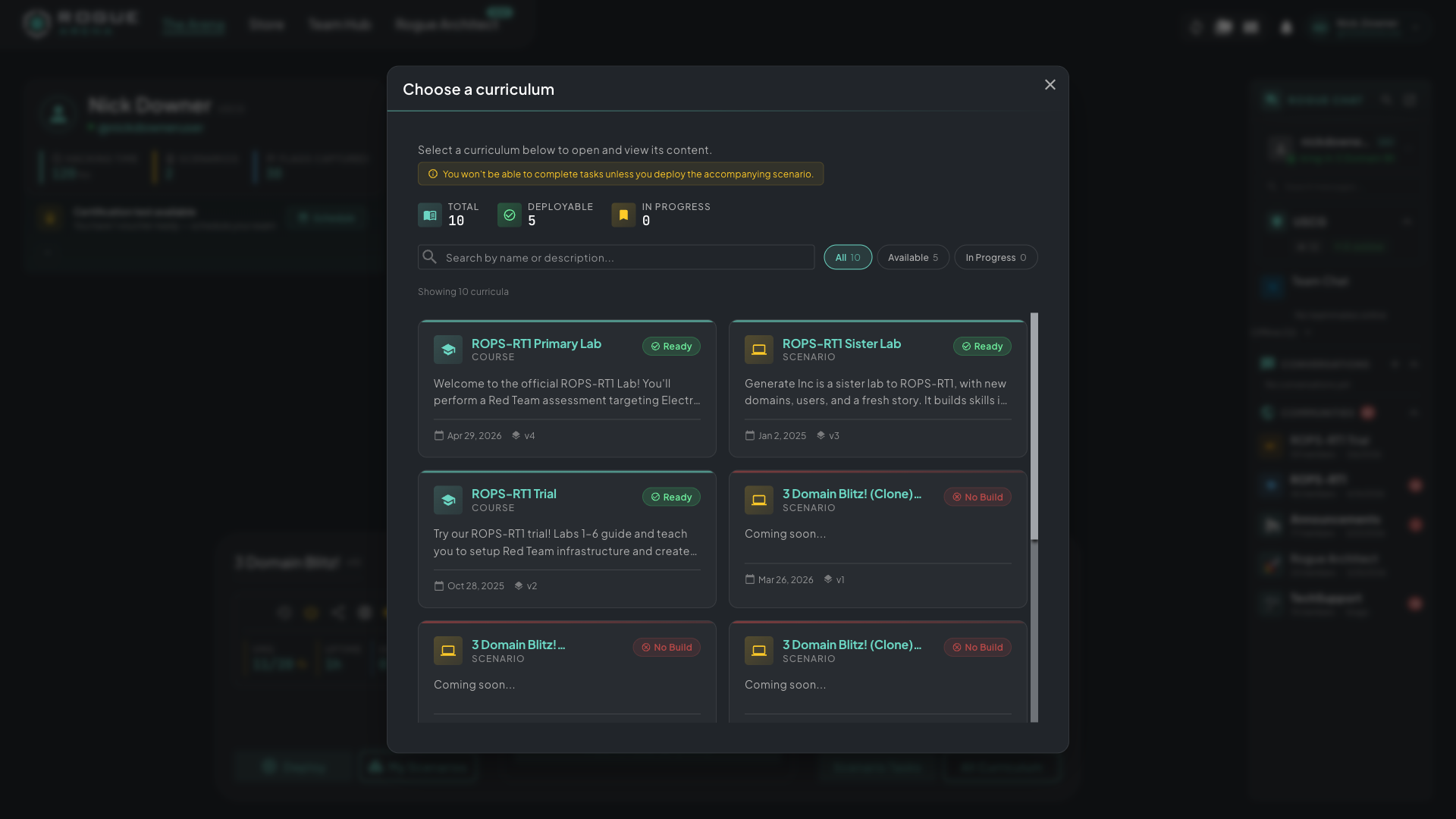 The All Curriculum picker lists every course available to you, including courses from scenarios you haven’t deployed yet.
Your progress saves automatically across sessions. If you leave the deployment and come back later, you pick up where you left off.