

Guest Links
A guest link lets someone join your running deployment without a Rogue Arena account. You send them a link and a 6-digit access code. They type their name and the code, and they are in your lab, using your existing VMs, until the link expires or you revoke it.
Use a guest link for a quick demo, an interview exercise, or a colleague who just needs to look over your shoulder. To share with a teammate (optionally with their own VMs), use Invite Guests instead.
| Guest link | Invite Guests | |
|---|---|---|
| Who it’s for | Anyone, no account | A teammate |
| Their own VMs | Never. Guests share your VMs | Optional |
| How long | 5 minutes to 7 days | Until you remove them |
Creating a Guest Link
Section titled “Creating a Guest Link”Your deployment must be running. In the deployment toolbar, click the link icon (tooltip Deployment guest links) to open Deployment Guest Links.
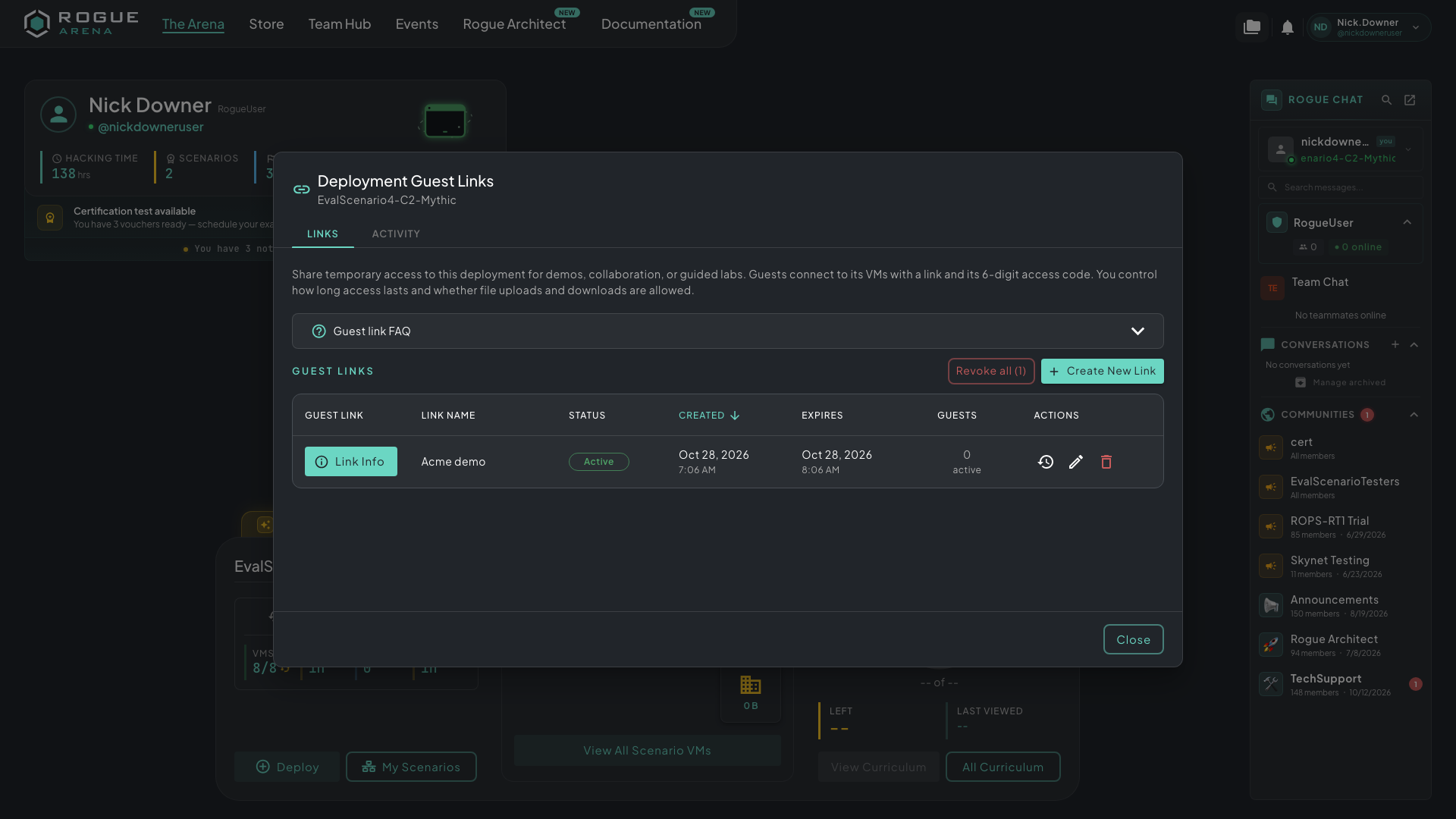 Deployment Guest Links lists every link for this deployment with its status, expiry, and active guests. The icons on the right show activity, edit the link, and revoke it.
- Click Create New Link.
- Give it a Link name (for example “Acme demo”) so you can tell your links apart.
- Set the Duration in minutes, hours, or days. The clock starts when you create the link.
- Choose whether guests may use File Upload and File Download.
- Click Create Guest Link.
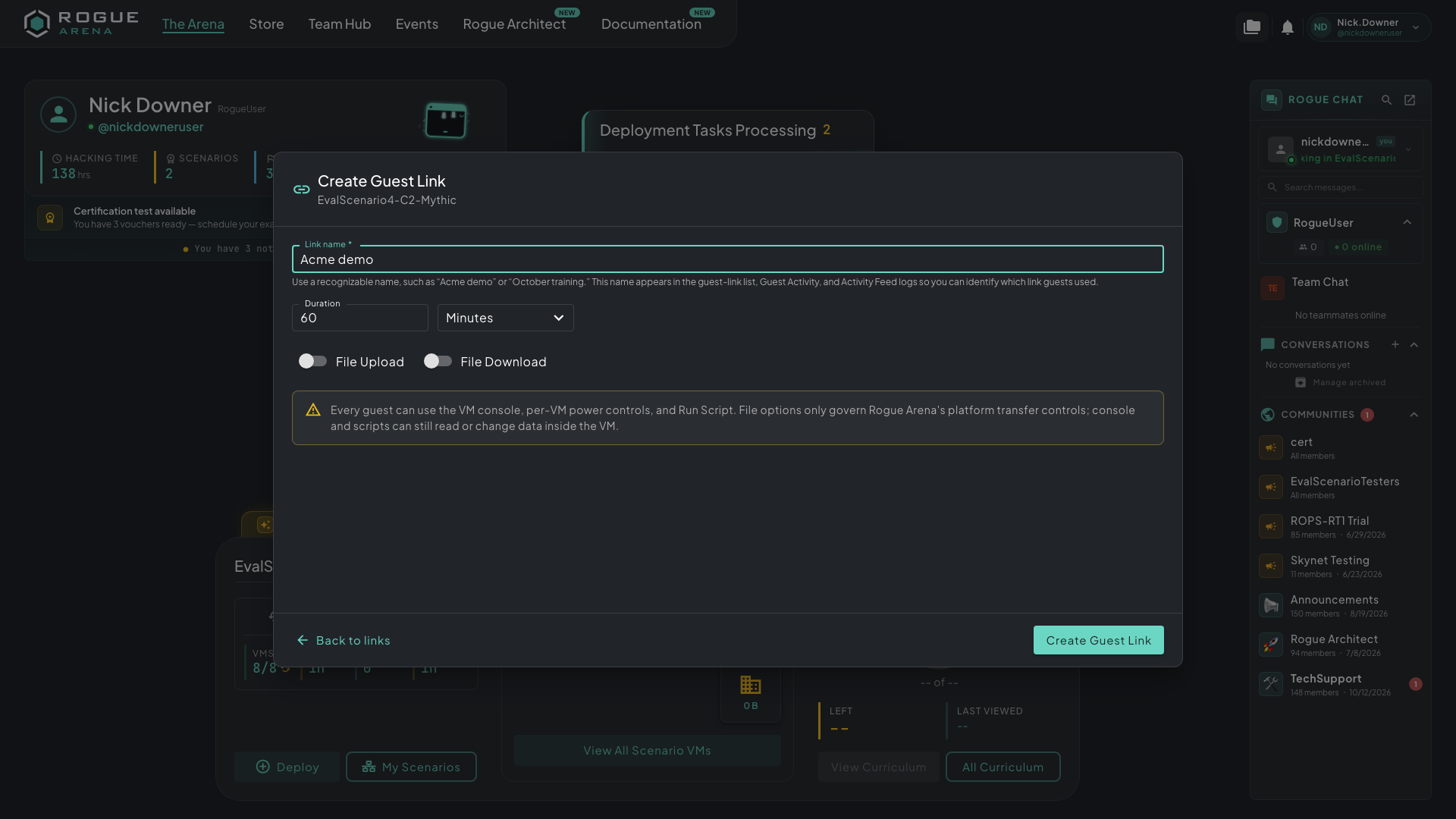 Create Guest Link: name the link, set how long it lasts, and decide whether guests can move files.
Click Link Info on the new link to see its access code and expiry, then click Copy link & code. You get a ready-to-send message with the link, the access code, and the expiry time. One link can go to as many people as you like; each guest joins in their own session.
Joining as a Guest
Section titled “Joining as a Guest”The guest opens the link, enters Your name and the 6-digit access code, and clicks Join lab.
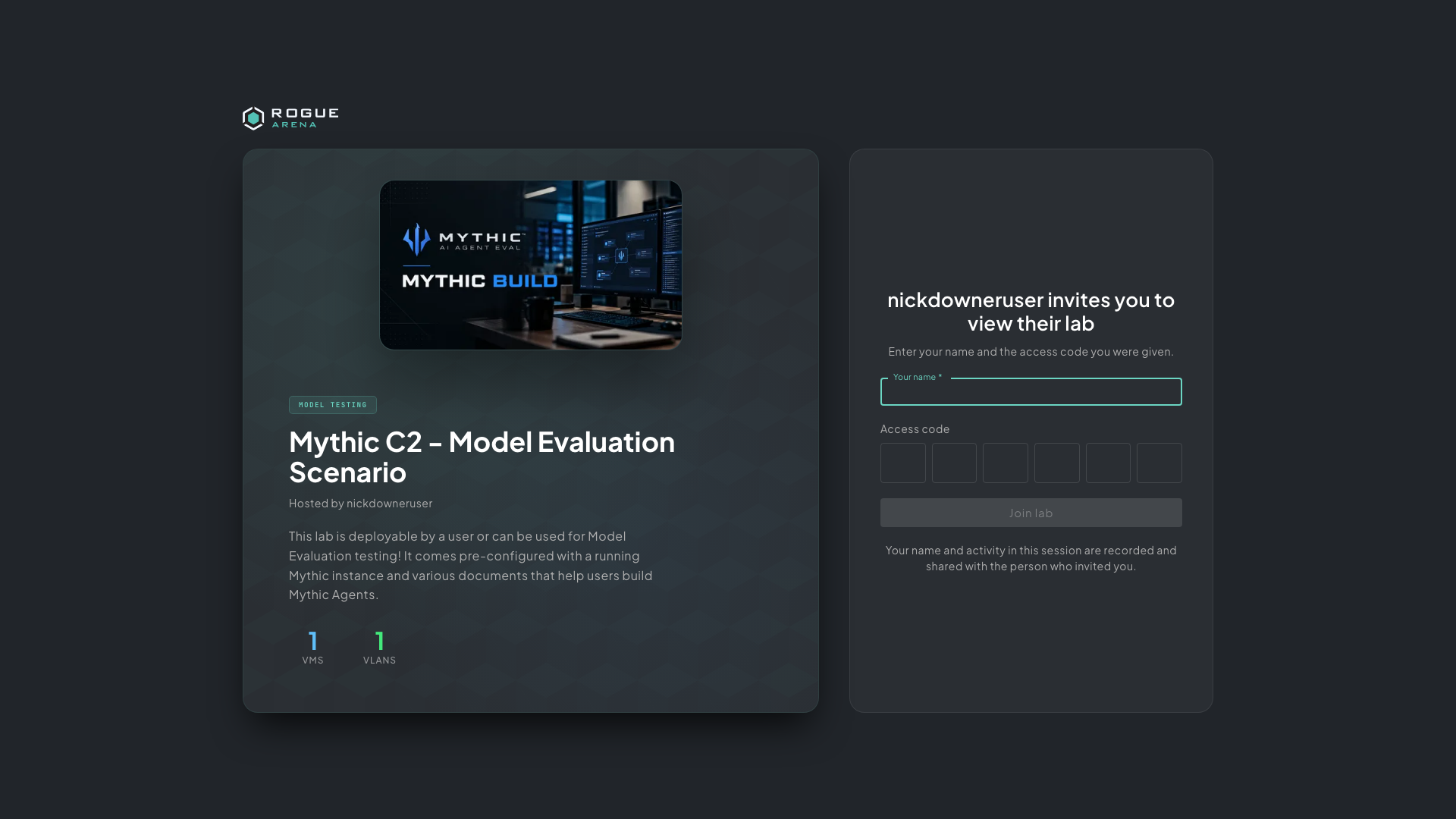 What your guest sees: the lab they’ve been invited to, a name field, and the access code.
The join page tells them that their name and activity are recorded and shared with you. They land in your lab with a banner reading In reduced functionality guest mode. If they are already signed in to Rogue Arena in that browser, they are asked to open the link in a private window so their own account isn’t affected.
What Guests Can Do
Section titled “What Guests Can Do”Guests can:
- Open and use every VM console in the deployment
- Power VMs on and off and run scripts
- Read the curriculum
- Upload and download files, if you allowed it on the link
Guests can’t:
- Take or revert snapshots
- Connect over VPN or use chat
- Manage the scenario or reach any other deployment
Watching and Ending Access
Section titled “Watching and Ending Access”The Activity tab shows each guest’s timeline: when they joined and left, which consoles they opened, and how much they typed.
Access ends when:
- The link expires
- You click Revoke guest link, or Revoke all to end every link at once
- The deployment is shut down
Revoking disconnects guests straight away. Editing a link’s duration or file access also signs current guests out; they can rejoin with the same link and code.
After 10 wrong access codes in 15 minutes, the link pauses for a while to block guessing. Guests already inside stay connected.
When Guest Links Aren’t Available
Section titled “When Guest Links Aren’t Available”You can’t create a guest link:
- While the deployment is stopped
- On certification, event, and free trial labs
- On protected labs, where the scenario’s author has turned off downloads. The deploy dialog shows this as Downloads: Disabled.