

Taking a Certification Test
A certification test is a proctored exam that runs in its own lab. You book a test date with a certification voucher, join a proctoring meeting on the day, and unlock the lab with a PIN your proctor gives you.
You need a certification voucher for the course. Rogue Labs issues them, and yours are listed under Certification Vouchers on your profile.
Scheduling a Test
Section titled “Scheduling a Test”While you have a voucher with no test booked, your dashboard shows a Certification test available card. If your notifications are collapsed, click You have N notifications to open them.
- Click Schedule on the card. Manage Certification Test Dates opens.
- Under Schedule a new certification attempt, pick a voucher in Which voucher would you like to use?. The voucher that expires first is picked for you.
- Click Choose Testing Days and pick a date. Only dates for that voucher’s course are listed. The dialog then shows each testing day and its hours.
- Click Schedule Test.
- Read Important Test Information and click Agree and Schedule Test.
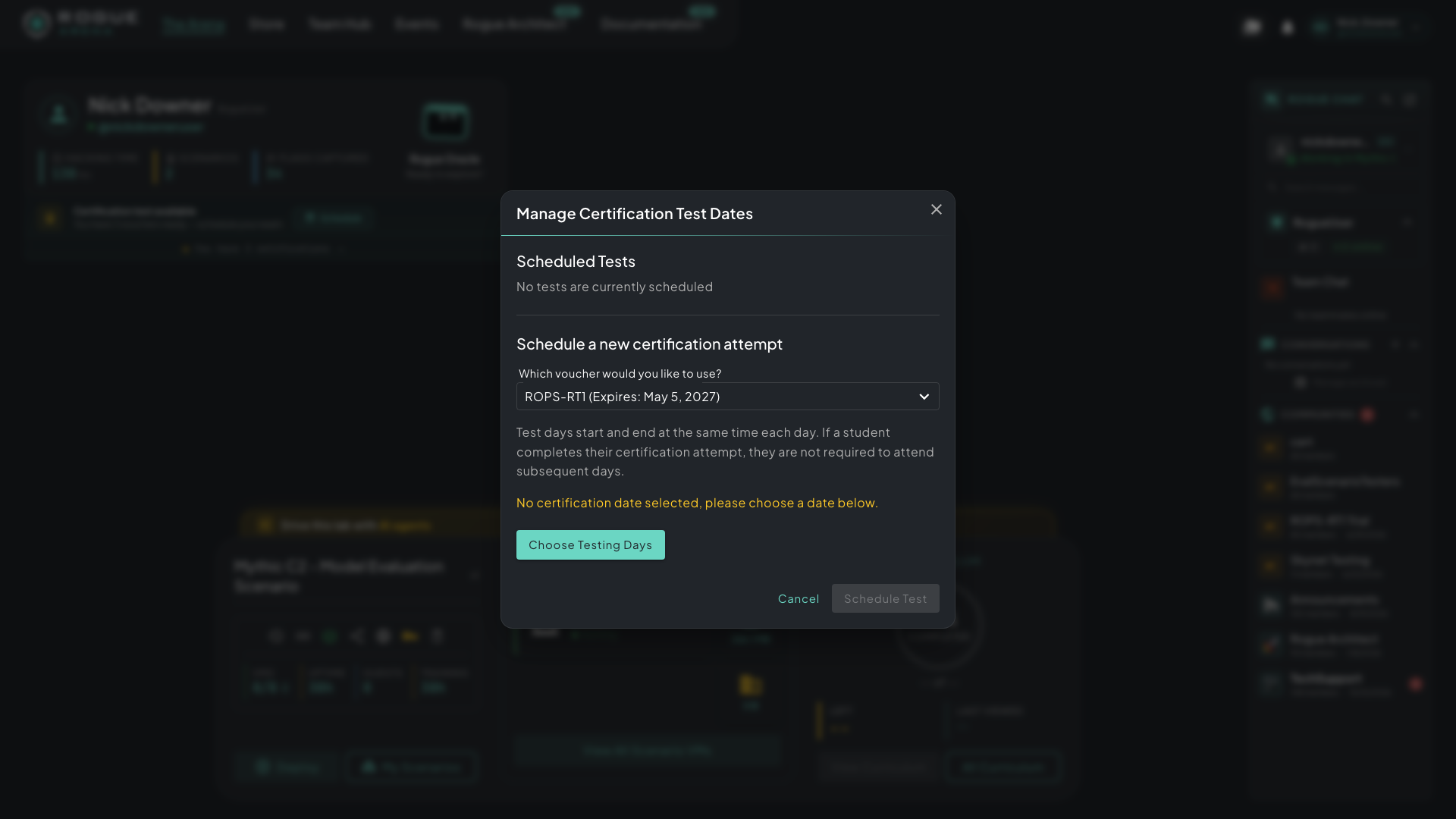 Manage Certification Test Dates. Pick a voucher, then click Choose Testing Days to see the dates for its course.
You then get two emails: a Teams meeting invite for the proctoring session, and a confirmation with details about your test. You can have one test booked per course at a time.
Test times are in Central Time (CT). If your computer uses another time zone, your own time follows in brackets, for example “8:00 AM CT (9:00 AM EDT your time)”.
A test can run over several days. Each day starts and ends at the same time. If you finish early, you don’t need to attend the remaining days.
Cancelling a Test
Section titled “Cancelling a Test”Scheduled Tests, at the top of Manage Certification Test Dates, lists your upcoming tests. To cancel one, click the cancel icon next to it (Cancel Test Date) and confirm. You keep your voucher. If you need to reschedule, do it at least 24 hours before the test.
Once you start a test, its voucher is used and can’t be refunded or reused.
Starting the Test
Section titled “Starting the Test”Rogue Arena deploys your certification lab in the 24 hours before your test starts. On test day:
- Join the proctoring meeting from your invite. Be ready to share your screen and turn on your webcam and microphone.
- Open the Scenario Manager (click My Scenarios on the lab card) and find your certification lab.
- Click Unlock Certification, enter the PIN your proctor gives you, and click Unlock.
- Read the terms and click Accept Terms and Start Test Session. Clicking Deny leaves the test locked.
During the Test
Section titled “During the Test”A Certification Test Time panel shows which day you’re on (for example “Day 1 of 2”) and how much time is left today.
- The server enforces the session’s end. When the day’s time runs out, the lab locks and the test content closes, even if you leave the page open.
- On a test that runs over several days, the lab stays locked until the next day’s session. Your proctor gives you a new PIN each day.
- You can’t switch to another scenario while a test session is active.
- If you finish early, click End Test Session in the Scenario Manager and confirm. This ends the whole test, including any later days.
When the test is over, the lab shows Test Completed.
What’s Turned Off in a Certification Test
Section titled “What’s Turned Off in a Certification Test”To keep the test fair, these are refused in a certification lab:
- Guest links and sharing the lab with teammates
- Snapshots
- Rogue Oracle
- Memory capture and OVA export
- Execute Command, browsing a VM’s files, and powering VMs on or off