

Team Scenario Progress
The Team Scenario Progress tab in Team Hub shows how far each team member has gotten in each scenario: chapters unlocked, times completed, VM time, and video watched. Click a row to see that person’s full timeline for the scenario.
Required role: Org Manager
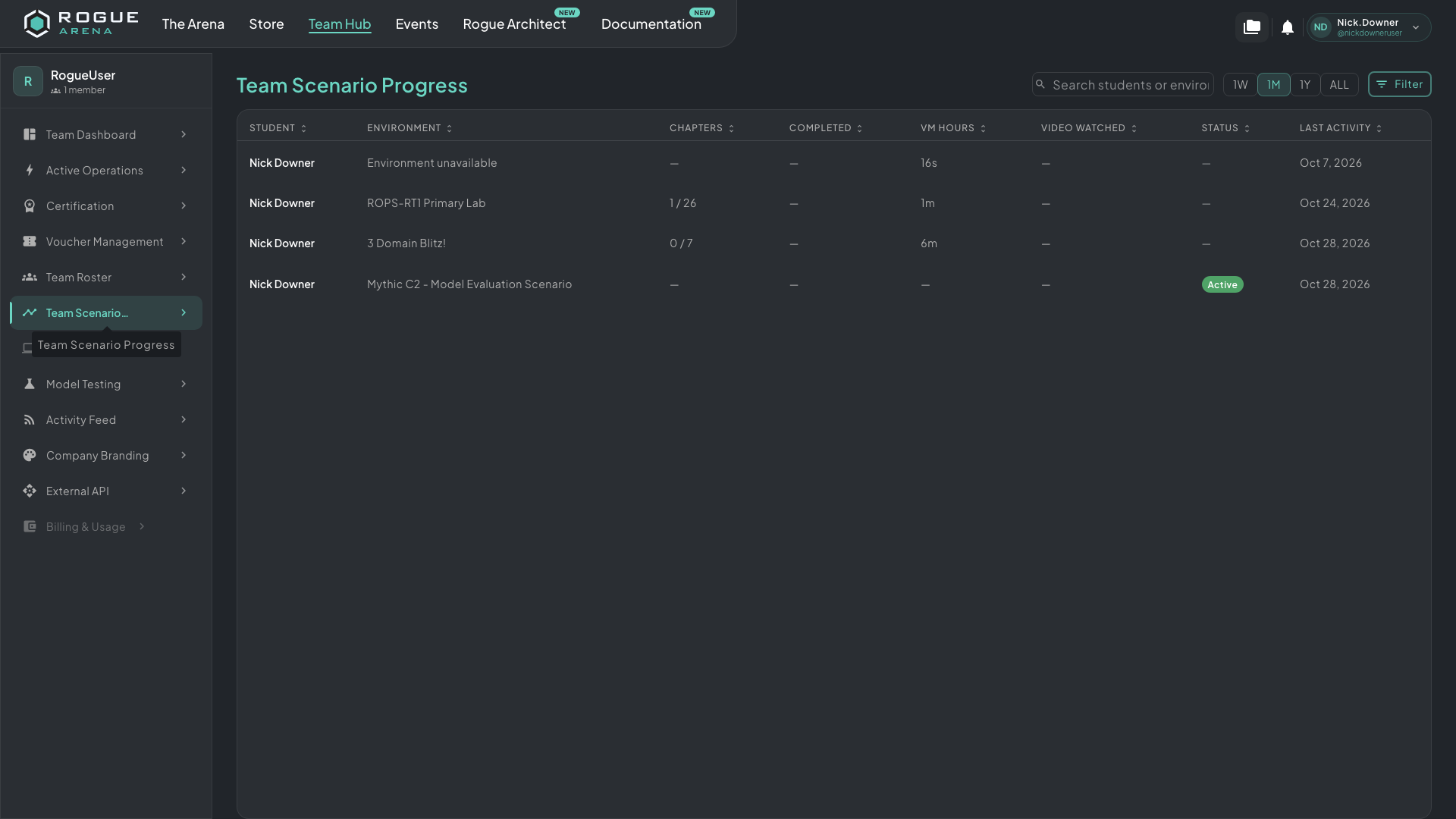 Team Scenario Progress. Each row is one team member in one scenario.
The Progress Table
Section titled “The Progress Table”Each row is one team member working through one scenario. The columns are:
- Student: the team member.
- Environment: the scenario.
- Chapters: locked chapters they’ve unlocked, out of the total, for example “3 / 8”. Shows a dash when the scenario has no curriculum or no locked chapters.
- Completed: how many times they’ve completed it, for example “2×”.
- VM Hours: time their VMs ran.
- Video Watched: time spent watching curriculum videos.
- Status: Active when they have the scenario deployed right now.
- Last Activity: the date they last worked in it.
Click any column heading to sort by it.
Narrowing the List
Section titled “Narrowing the List”- Search: type in Search students or environments… to match names and scenarios.
- Time window: pick 1W, 1M, 1Y, or All to choose how far back the table looks. It starts at 1M. VM Hours and Video Watched add up activity inside that window.
- Filter: click Filter to open Filter Completions. On the Students and Environments tabs, tick the people and scenarios you want (or use Select All and Clear All), then click Save & Apply.
A Team Member’s Timeline
Section titled “A Team Member’s Timeline”Click a row to open a panel for that person and scenario. It reads their current lab, marked Live, or their most recent removed lab, marked Lab removed, along with the date it was deployed.
The totals at the top show Completed, VM Time, Sessions, Keystrokes, and Video. Completed counts every run of the scenario (All runs). The rest count only the run shown (This run).
Below the totals:
- Activity Timeline: the run’s events grouped by day, including when the scenario was deployed and removed, each console session with its VM, length, and keystrokes, chapters unlocked and completed, answers submitted, and videos started. Click Load earlier to see older events.
- Questions & Answers: each curriculum question with every attempt they made at it and the result.
- Videos: which curriculum videos they’ve completed and how long they watched each one.
Questions & Answers and Videos appear only when the scenario has questions or videos.
To watch a team member’s lab as it happens, use Active Operations.