

VM Hours and Lab Plans
Designing labs in Rogue Architect is free. Running them uses VM hours: your running labs, and test builds of your own scenarios, share the hours you have. You get hours from a monthly Lab plan, from one-time hour packs, or from access that someone else covers, such as your team or Rogue Arena staff.
Where Your Hours Come From
Section titled “Where Your Hours Come From”When you start a lab, Rogue Arena checks these sources in order. The first one that applies pays for the lab.
- The event, course launch, certification exam, or free trial the lab was started for.
- Staff access from Rogue Arena staff.
- 24/7 lab access that staff gave you or a course voucher unlocked. This covers your own labs while your personal deployment slot is free.
- Your team’s deployment pool, if you’re on a team with shared slots.
- Any other 24/7 lab access, such as course or trial access.
- Your Lab plan’s hours for this month.
- Hour packs, plus VM hours from vouchers and Rogue Rewards. Hours with an expiry date are used before hours that never expire.
Sources 1 to 5 don’t use VM hours. The last step of the deploy dialog shows which source pays for the lab you’re starting. See Deployment Slots and Funding.
To see what covers you now, open Billing & AI Wallet in your User Profile. Your Lab access lists staff, team, or 24/7 access, and VM hours left shows ∞ when one of them covers your labs. See Billing and AI Wallet.
Lab Plans
Section titled “Lab Plans”A Lab plan is a monthly subscription for personal VM hours. Billing calls it your Lab Subscription.
- Monthly hours. Each plan gives you a set number of VM hours every month. Hours reset each month, and unused hours don’t roll over. Yearly billing works the same way: the payment covers the year, and the hours refresh monthly.
- Monthly AI credit. Some plans include AI credit for Rogue Oracle. It refills to the plan’s amount each billing month, and unused credit doesn’t carry over. Granted AI credit is spent before money you add to your AI Wallet.
- Every plan includes Architect building, MCP tools, hours that run any lab or build, the option to add hour packs, and upgrading or canceling at any time.
Compare the current plans, their hours, and their prices on the public pricing page. Some plans offer yearly billing at a discount.
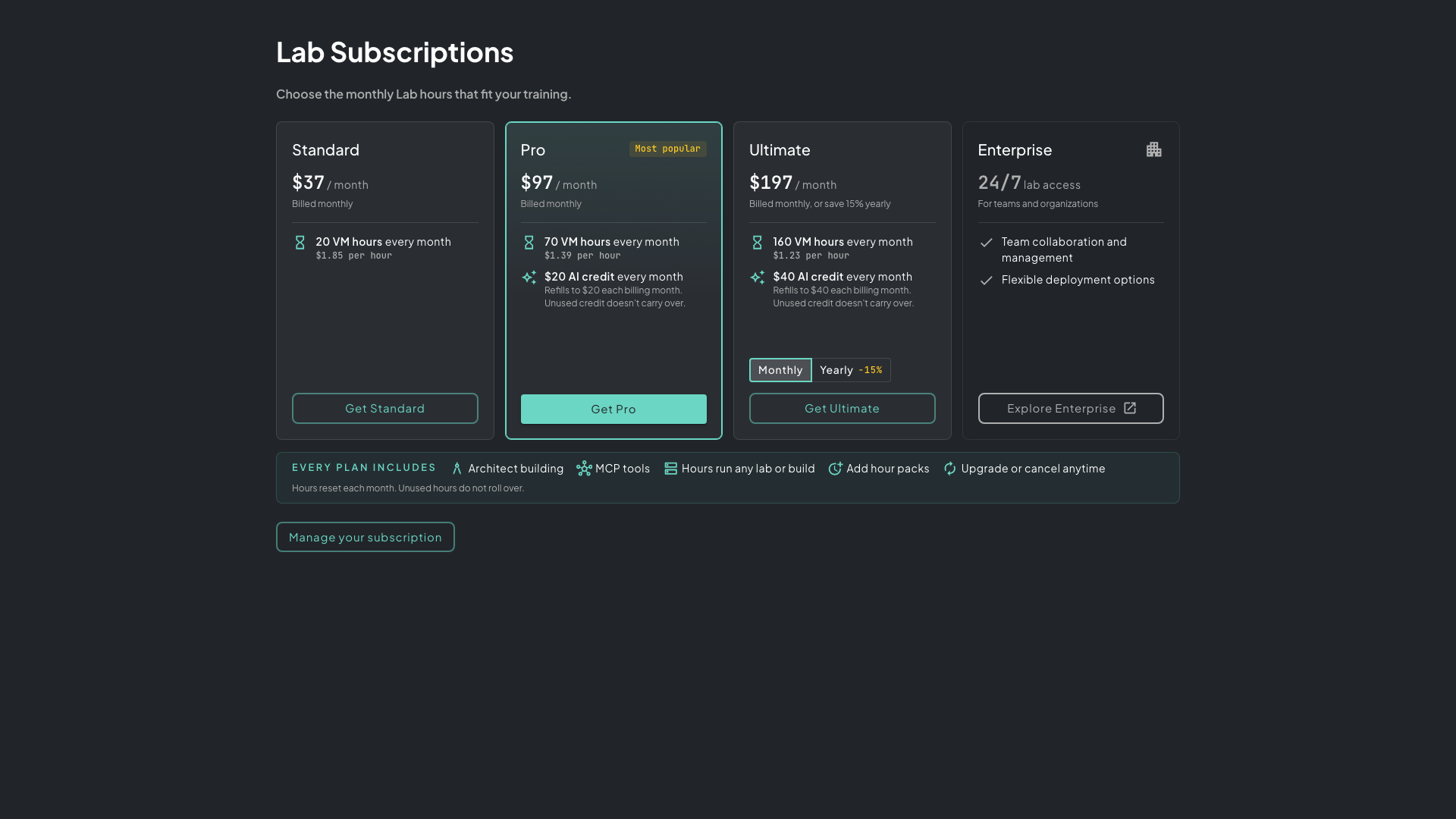 The pricing page. Each card shows the plan’s monthly VM hours and any AI credit it includes. Enterprise covers teams and organizations.
Buying a Lab Plan
Section titled “Buying a Lab Plan”- Click Store in the top bar.
- On the Lab Access card, click View Lab Plans.
- Pick a plan. Where a plan offers both, choose Monthly or Yearly first.
- Review your plan, click Continue to checkout, then Continue to Stripe.
- Pay on Stripe’s secure checkout page.
Your plan shows up in Billing & AI Wallet once Stripe confirms the payment.
If your labs are already covered by your team, a 24/7 access date, or staff access, the Store doesn’t sell you a plan, because it wouldn’t be used.
Changing or Canceling
Section titled “Changing or Canceling”Open Billing & AI Wallet. On the Lab Subscription card:
- Change plan compares plans and shows when the change takes effect. An upgrade can start now, with a prorated charge and extra hours this month. Other changes are scheduled for your renewal date.
- Manage subscription opens Stripe’s secure subscription management.
- Cancel ends the plan at the close of your paid period. You keep your remaining hours until then.
Hour Packs
Section titled “Hour Packs”Hour packs are one-time VM hours with no subscription.
- Pack hours are used after your Lab plan’s monthly hours.
- Pack hours never expire.
- You can buy packs with or without a Lab plan.
To buy one, click Buy hour pack on the One-time VM hour packs card in the Store, or Buy Hour Pack under VM hours left in Billing & AI Wallet. Choose a pack, then pay with your saved Primary card or click Continue to secure checkout to pay on Stripe.
If the Store says Your lab access already covers your labs without hours., your labs don’t need packs right now.
Team Members
Section titled “Team Members”If you’re on a team, you can’t buy a Lab plan or hour packs. The Store and billing show You’re on a team. Team subscriptions are arranged through Rogue Arena staff. Ask your team’s Org Manager about your team’s deployment slots.
You can still add money to your AI Wallet for Oracle.
When Your Hours Run Out
Section titled “When Your Hours Run Out”When your VM hours run out, your running labs are saved and powered off. The lab’s row on your dashboard shows Out of VM hours, and starting or turning on a lab is refused until you have hours again.
What happens to a stopped lab depends on your plan:
- With an active Lab plan, the lab is kept. Turn it back on after you buy an hour pack or your plan’s hours reset.
- Without an active Lab plan, the lab is removed 72 hours after it stopped, unless you turn it back on first.
Other Ways to Get VM Hours
Section titled “Other Ways to Get VM Hours”When a lab or build needs hours you don’t have, the Get VM hours window lists your options:
- Get VM hours: choose a Lab plan or hour pack in the Store.
- Book an Event: run your lab as a hosted event.
- Schedule a Demo: see Rogue Arena with our team. We set up access for your organization after the demo.
- Refer a Friend: earn Rogue Rewards points for VM hours, plan months, and AI credit.
Your organization can also give you VM hours with a voucher.