

Billing and AI Wallet
Billing & AI Wallet is where you see everything you pay for in Rogue Arena: your Lab plan and VM hours, your AI Wallet, what you’ve used, and what you’ve paid.
To open it, click your name in the top-right, choose User Profile, then click Billing & AI Wallet in the sidebar. You can also go straight to arena.roguelabs.io/user-profile/billing.
The page has five tabs: Overview, AI Wallet, Usage, Payments & invoices, and Credits & promos.
Overview
Section titled “Overview”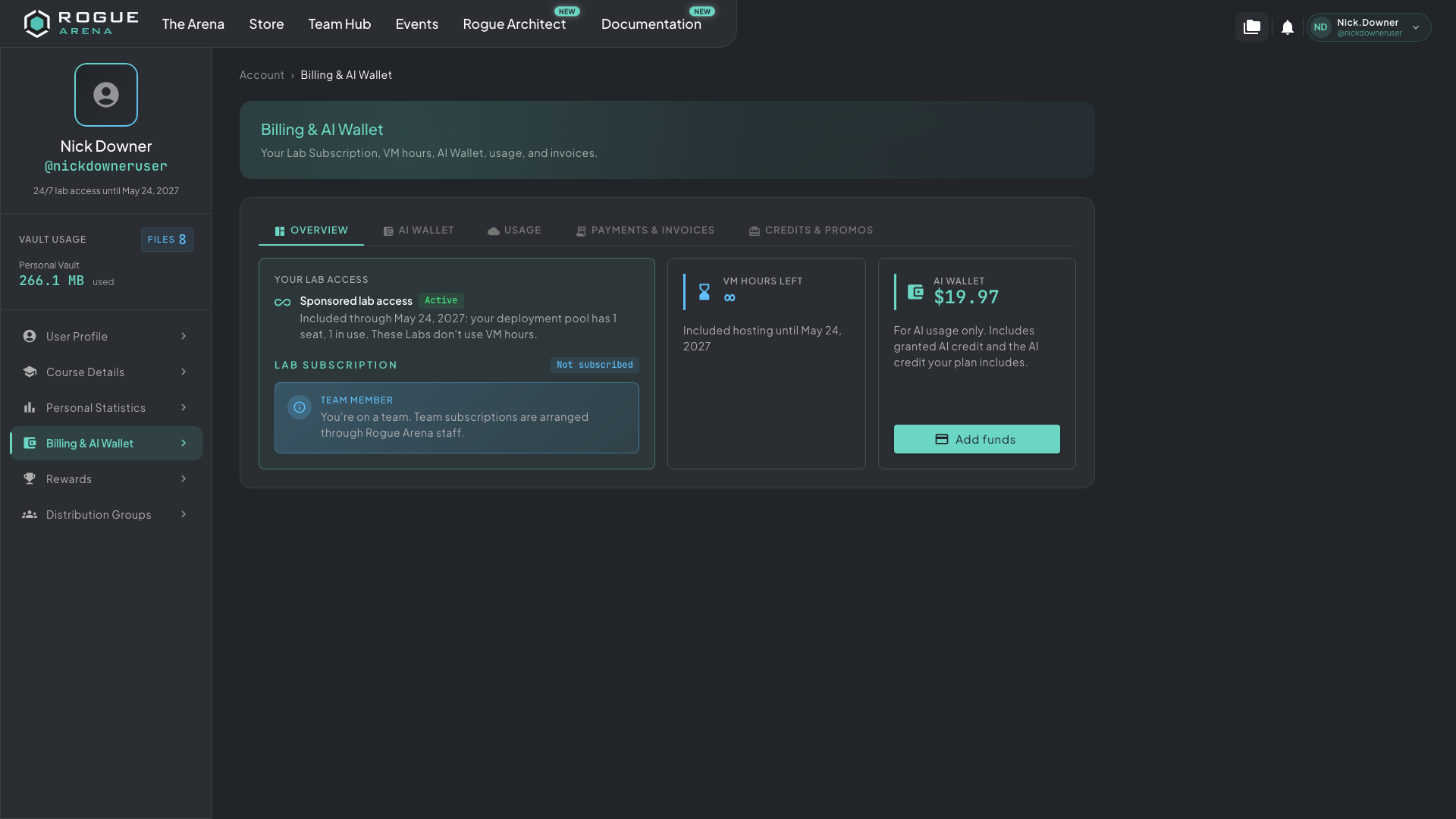 The Overview tab. Here sponsored 24/7 lab access covers this account’s labs, so VM hours left shows ∞.
- Your Lab access lists anything that already covers your labs: staff access, your team’s deployment pool, or 24/7 lab access and the date it ends. Labs covered this way don’t use VM hours.
- Lab Subscription shows your Lab plan: its name and price, its monthly VM hours, how many hours are left this period, and any included AI credit with its reset date. From here you can Change plan, Manage subscription in Stripe, or Cancel. With no plan, View lab plans takes you to the Store.
- VM hours left adds up your plan’s hours and your hour packs. It shows ∞ when staff, team, or 24/7 access covers your labs. Click Buy Hour Pack to add more.
- AI Wallet shows your AI balance. Click Add funds to top it up.
- Running now lists usage that is running at the moment.
If a plan payment fails, the Lab Subscription card says so, and your new plan hours wait until the payment goes through. Click Pay now or Fix payment to sort it out.
For how hours are used and what happens when they run out, see VM Hours and Lab Plans.
AI Wallet
Section titled “AI Wallet”The AI Wallet pays for AI usage only, such as Rogue Oracle. VM time is paid in VM hours.
Your balance combines two kinds of money:
- Credits you were granted, such as your Lab plan’s monthly AI credit, welcome rewards, or Rogue Rewards. Each one shows its amount and when it expires. Granted credits are used before your money.
- Money you added with a top-up.
To top up:
- Open the AI Wallet tab.
- Pick an amount, or type one in Top-up amount (USD).
- Click Add funds.
Your Payment card sits beside the balance. Stripe keeps your card details; Rogue Arena only sees the brand and last 4 digits. Your Primary card pays for top-ups and your Lab plan. Click Make Primary to switch cards, or Manage in Stripe to add or change one.
Team Wallets
Section titled “Team Wallets”If your team has a team wallet, Oracle can pay from it. The chip in Oracle’s message box shows which wallet pays, and you can choose Team first or Personal first. If both wallets run out, ask your team admin to add AI credits to the team wallet.
The Usage tab charts your AI spending over the last 7 days, 30 days, 90 days, or 12 months. Below the chart is every usage event, VM hours and AI usage alike. Filter by category or status, or click More filters for dates, provider, and model. Click Export CSV to download the list.
Payments & Invoices
Section titled “Payments & Invoices”Payments & invoices lists your billing events: payments, invoices, credits, expirations, and adjustments. Filter by type, status, or date, open a row’s receipt, or click Export CSV.
Credits & Promos
Section titled “Credits & Promos”Credits & promos is the history of credits you’ve been granted. Each row shows what the credit was for, whether it applies to VM hours, AI usage, or both, when it expires, and the amount.