

Company Branding
The Company Branding tab in Team Hub sets how your organization appears across Rogue Arena: its logo, display name, tagline, and website.
Required role: Org Manager
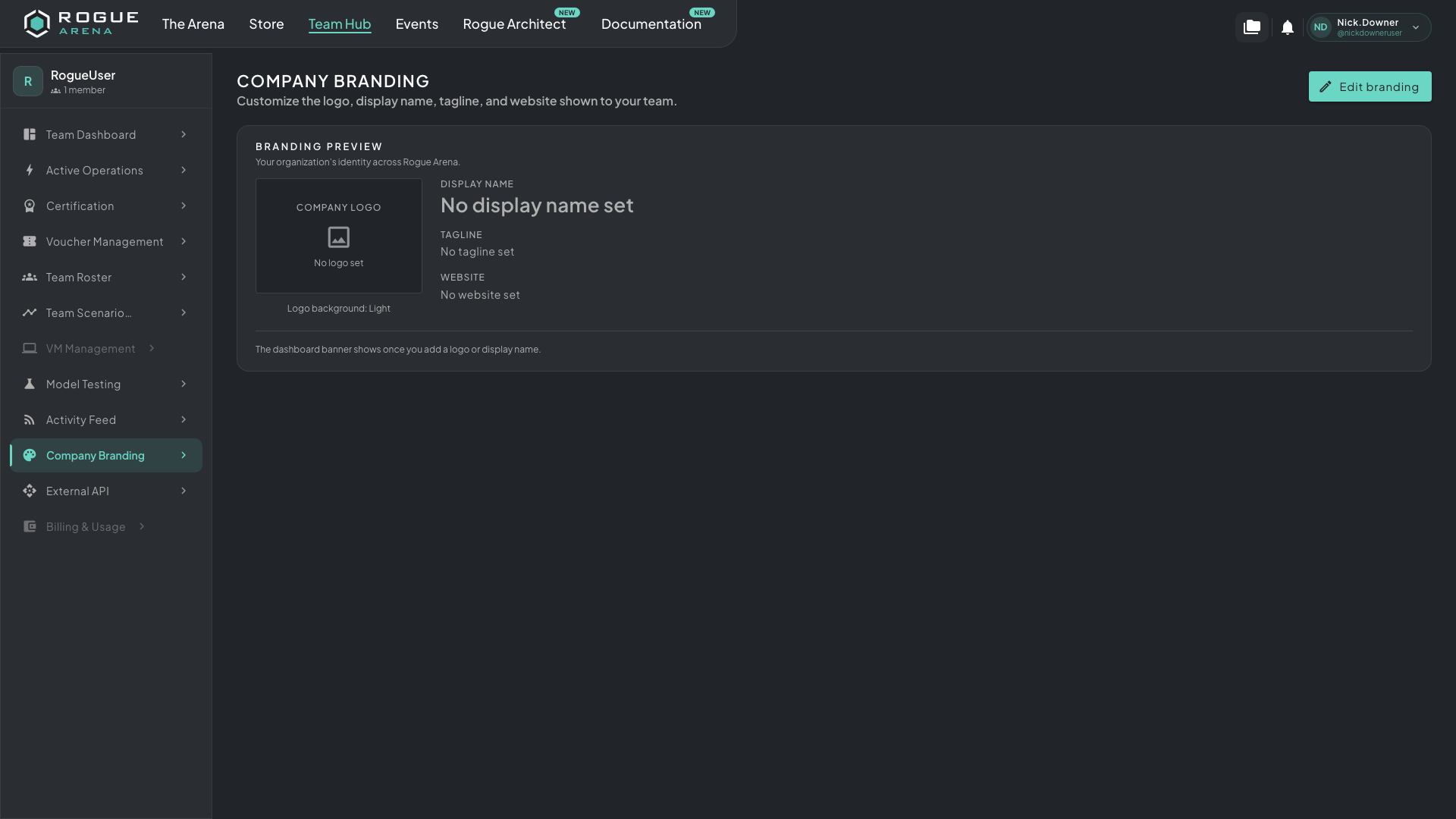 Company Branding. The preview shows your current logo, logo background, display name, tagline, and website.
Where Your Branding Shows
Section titled “Where Your Branding Shows”- Your team’s dashboards: a banner at the top of each team member’s dashboard with your logo, display name, tagline, and a link to your website. It appears once you’ve added a logo or a display name.
- Team Hub: your logo and display name sit at the top of the Team Hub sidebar, with your member count.
- Guest link pages: when someone on your team sends a guest link, the join page reads “Your display name invites you to view their lab”, with your logo above it. Guest pages use your branding only when you’ve set a display name; a logo on its own isn’t enough. Changes can take up to 5 minutes to reach guest pages.
Editing Your Branding
Section titled “Editing Your Branding”- Click Edit branding to open Edit Company Branding.
- Click Upload logo and choose an image file. Use Replace logo or Remove logo to change it later.
- Under Logo background, pick Transparent, Light, or Dark. Each option previews your logo on that background, so pick the one it reads best on.
- Fill in any of the text fields:
- Display Name: up to 60 characters.
- Tagline: up to 120 characters.
- Website: the full address, like https://acme.com. If you leave off
https://, it’s added for you.
- Click Save.
Every field is optional. To remove a field, clear it and save.
Logo Requirements
Section titled “Logo Requirements”Most image formats work, including PNG, JPG, and SVG. Rogue Arena shrinks the logo to at most 320 pixels tall and saves it as a PNG. If the result is still larger than about 200 KB, you’ll see “Logo is too large after processing. Please choose a smaller or simpler image.” Try a smaller image, or one with fewer colors and less detail.