

Operating a VM
You can open every machine in your deployment in the browser with Rogue Arena’s custom VM browser. You don’t need a VNC client, an RDP setup, or SSH keys. The VM browser also needs no open ports on the VM, so no SSH port, RDP port, or anything else is exposed. The console gives you full graphical access to the desktop or terminal, as if you were sitting at the machine.
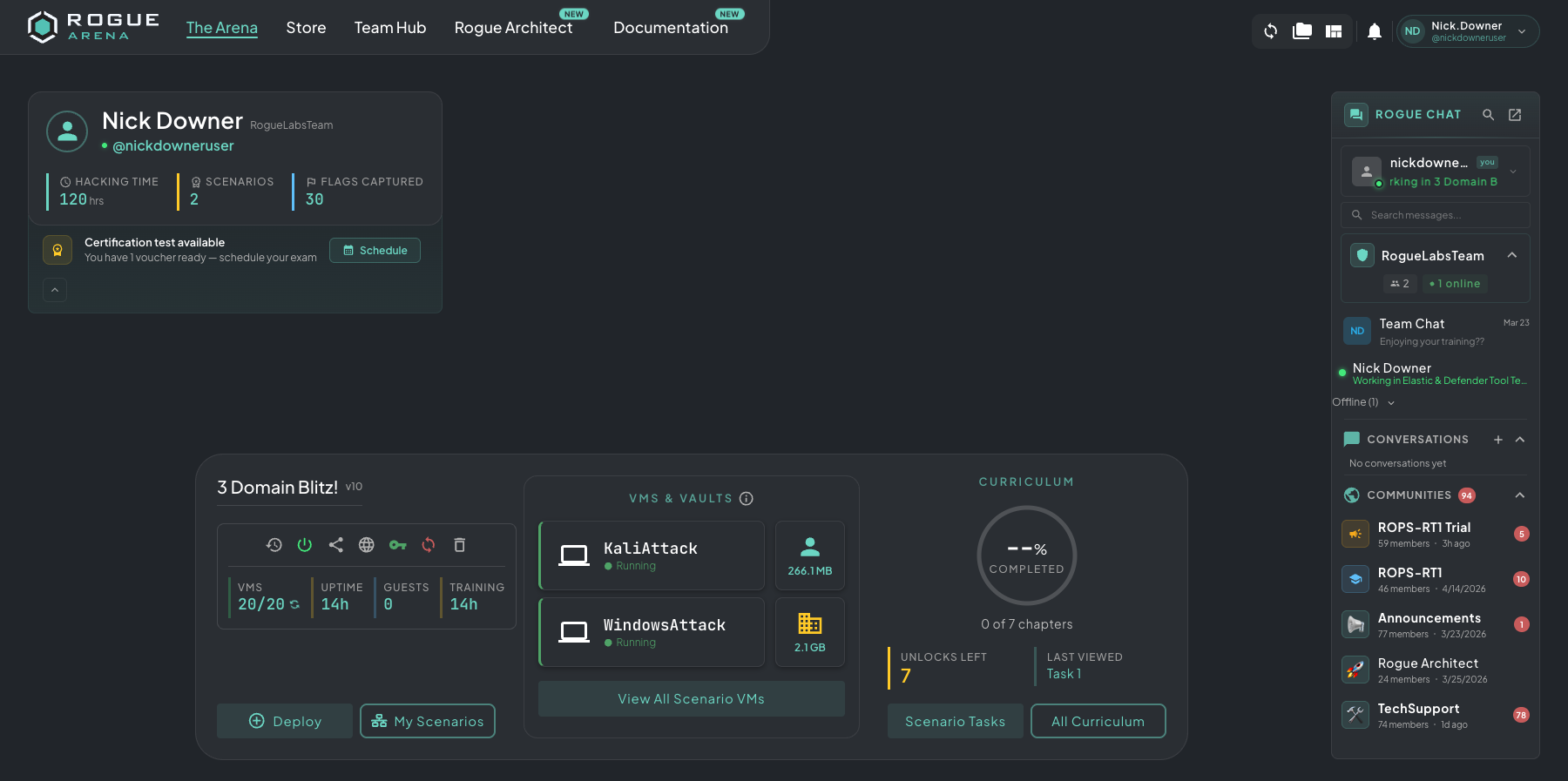 The Rogue Arena dashboard, where you start everything in a deployment.
The VM Dock
Section titled “The VM Dock”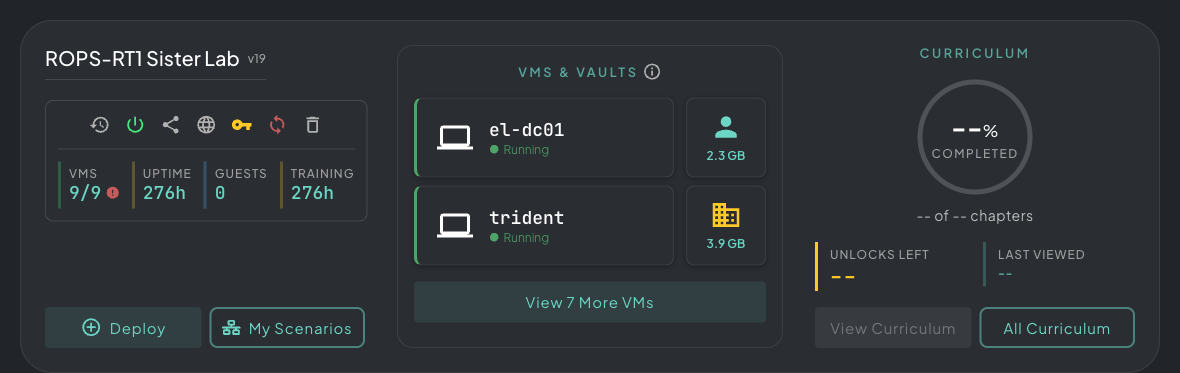 The VM dock. Featured machines open with one click, and a shortcut shows every VM in the scenario.
The VM dock works like a favorites list. It shows the two VMs used most in the scenario, so the machines you’ll spend most of your time in are one click away.
To see every machine you have access to, click View All Scenario VMs (it reads View n More VMs when some machines aren’t in the dock). This opens the deployment’s full machine list. Some VMs are hidden on purpose: backend and infrastructure machines stay out of sight until you complete the scenario, and then everything is revealed.
Click a machine in the dock or the full list to open its console. Consoles run in one of two viewers, Guacamole or the faster WebTransport. See VM Viewers to switch between them.
The Window System
Section titled “The Window System”Rogue Arena shows VM consoles in a windowed interface, so you can work in more than one machine at a time.
Snap Layout
Section titled “Snap Layout”Drag a console window to the edge of the screen to snap it into a split-screen layout, with two machines side by side or stacked. The square icon in the top-right corner of the VM window opens the snap menu. Pick a layout preset to tile the window, or use Warp to send it to another browser tab or device where you’re signed in. Click the beacon there to receive it. The smaller share button under Warp sends the window to a teammate.
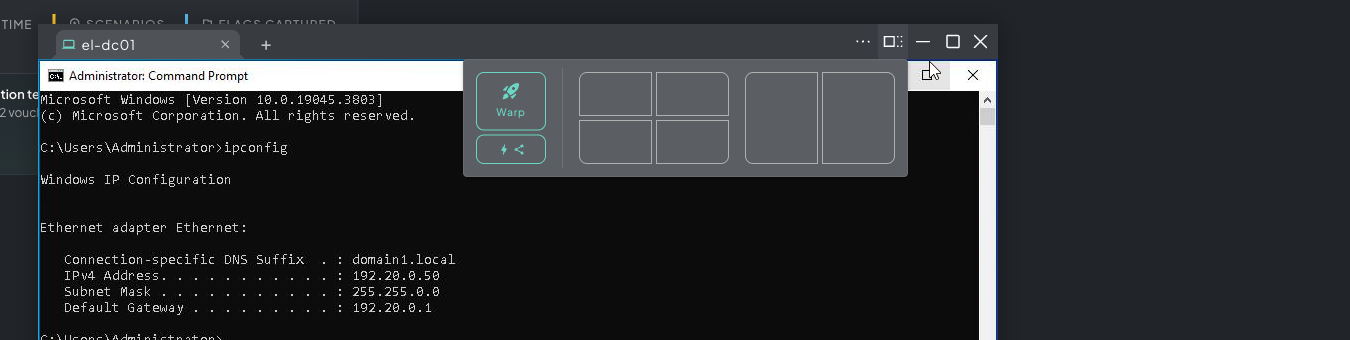 A VM console with the snap layout menu open. Pick a preset to tile several consoles side by side.
Multi-VM Tabs
Section titled “Multi-VM Tabs”Open several VMs as tabs in a single window. Click + to open a New Tab, then choose what goes in it: VMs, Curriculum, Chat, Vault, or Oracle. VMs lists every machine in the scenario, including machines that aren’t in the dock. Switch between tabs with one click, and each tab keeps your place. Guest link visitors get the VM list only.
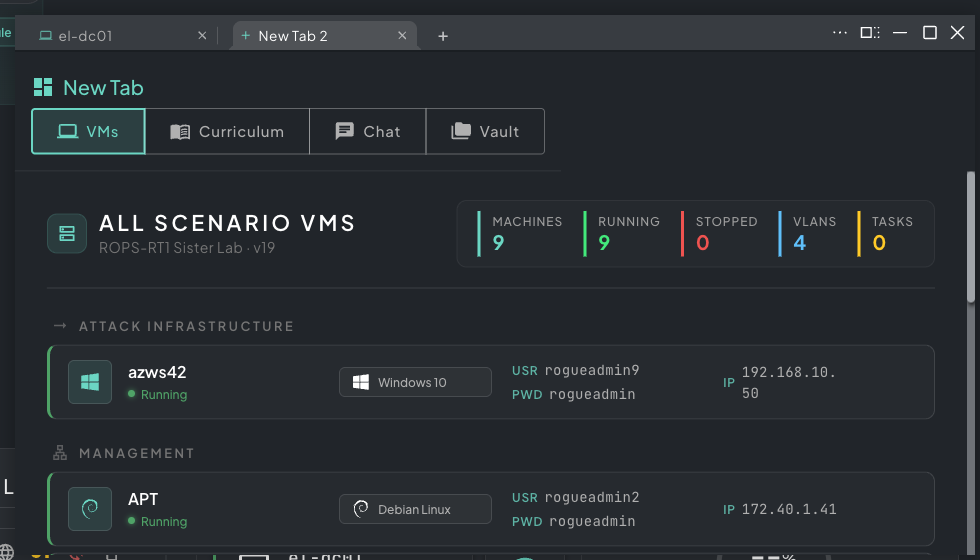 Multi-VM tabs. Open several consoles in one window and switch between them with one click.
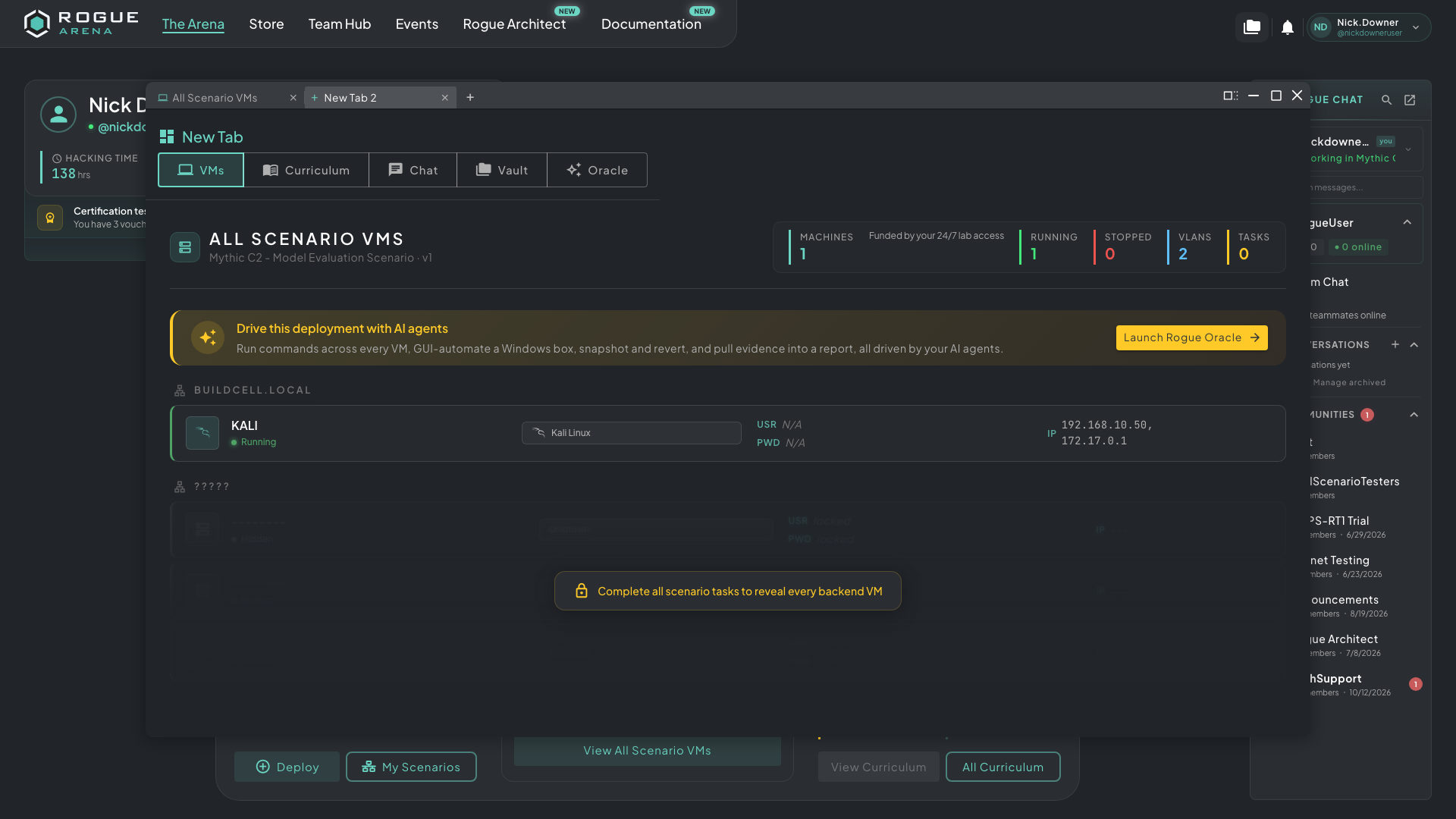 The New Tab picker. Choose a VM, the curriculum, chat, your vaults, or Oracle for the new tab.
Running a Command
Section titled “Running a Command”Execute Command runs a command or script on a VM and shows you the output, without opening its console. Anyone who can open the lab’s VMs can use it, including guest link visitors. It isn’t available in certification tests.
- Open View All Scenario VMs and hover the machine’s row. Its actions slide out on the right.
- Click the terminal icon (Execute Command). It’s greyed out while the VM is off.
- Type or paste your command. Windows machines run it in PowerShell and other machines in Bash.
- Click Run on PowerShell or Run on Bash.
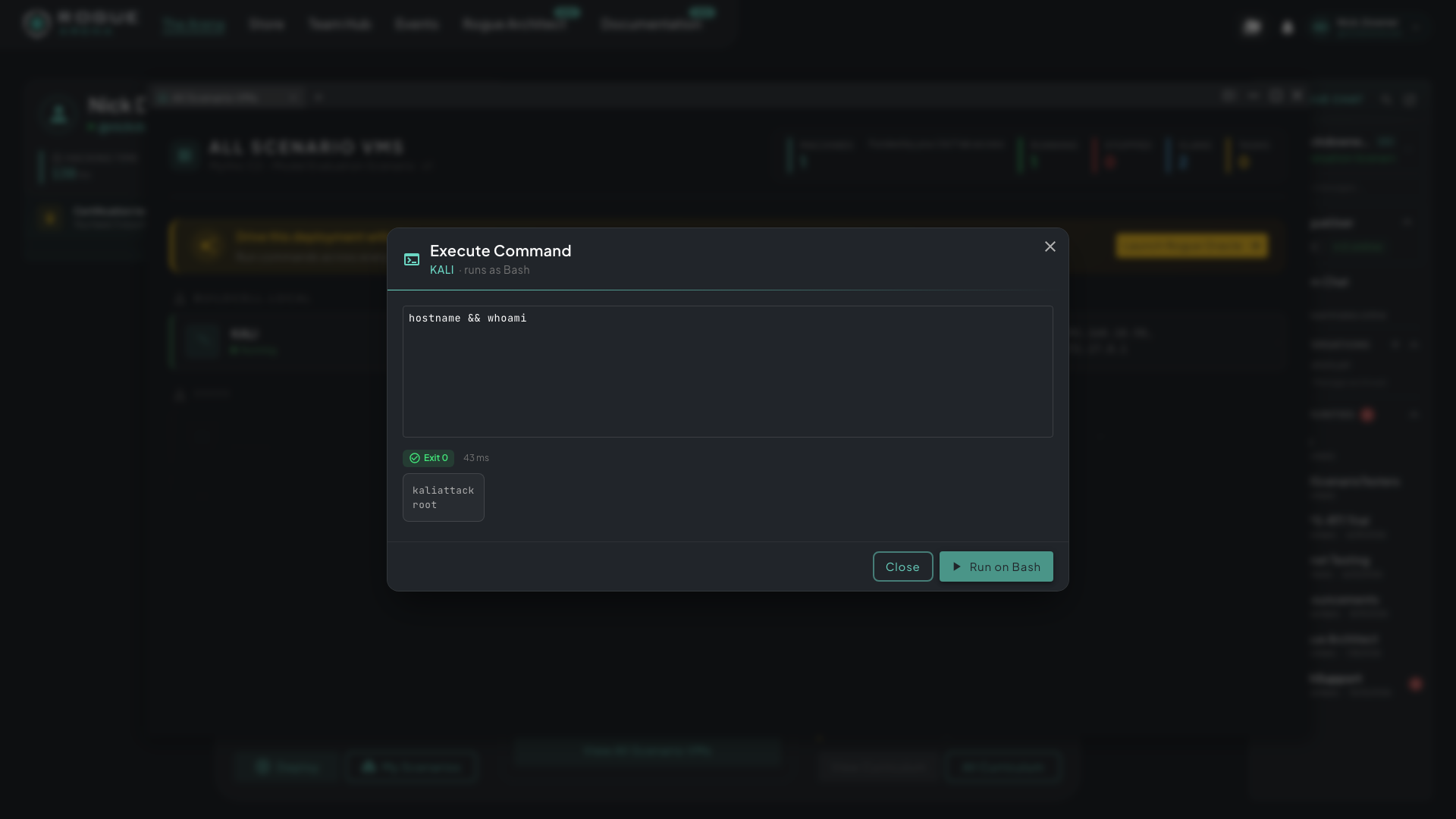 Execute Command. Type a command, run it, and read the exit code and output.
While the command runs, the window shows a timer. When it finishes, you see the exit code (Exit 0, in green, means it succeeded), how long it took, and the output. Very long output is trimmed and marked truncated. A command can run for up to 60 seconds; for longer jobs, use the VM’s console. Edit the command and run it again, or click Close.
VM Features
Section titled “VM Features”- Copy & paste: works natively in Chrome and Firefox. Copy on your local machine and paste straight into the VM, with no separate clipboard menu.
- Send keystrokes: for console VMs that don’t accept a normal paste (a bare TTY or a boot screen), open the … menu at the top right of the console window and use Send Keystrokes into VM to type the text into the VM for you.
- Type password: if the lab’s author set a password for a machine, Type Password into VM in the same … menu types it into the console for you.
- Simultaneous viewing & control: several teammates can open the same VM at once and share input live. Use it for over-the-shoulder help, pair debugging, and instructor walk-throughs without screen-sharing or remote-control software.
- Drag & drop file upload: drag a file from your local machine and drop it on the VM console to upload it to the desktop.
- Resize & reposition: you can resize each console window and drag it anywhere in the workspace.
- Session persistence: closing the browser doesn’t stop your lab. Come back later and your machines are still running, with your files and processes where you left them. On a Lab Subscription or hour pack, running time uses your VM hours, and the lab is saved and powered off when they run out. If it stays off, it’s removed 72 hours later unless you have an active Lab plan. On 24/7 lab access, a lab nobody opens for 14 days is shut down, with notices 4 days and 1 day before.