

Export a VM (OVA)
You can export a VM from your deployment as a single .ova file and run it somewhere else, such as VMware Workstation, ESXi, or any hypervisor that imports OVA files. The VM keeps running while Rogue Arena copies its disks, and the finished file stays available to download for 24 hours.
Starting an Export
Section titled “Starting an Export”Your deployment must be running. The VM can be on or off.
- In the VM dock, click View All Scenario VMs.
- Hover over the machine’s row and click the box icon, Export as OVA.
- In Export OVA, check the machine name and click Start Export.
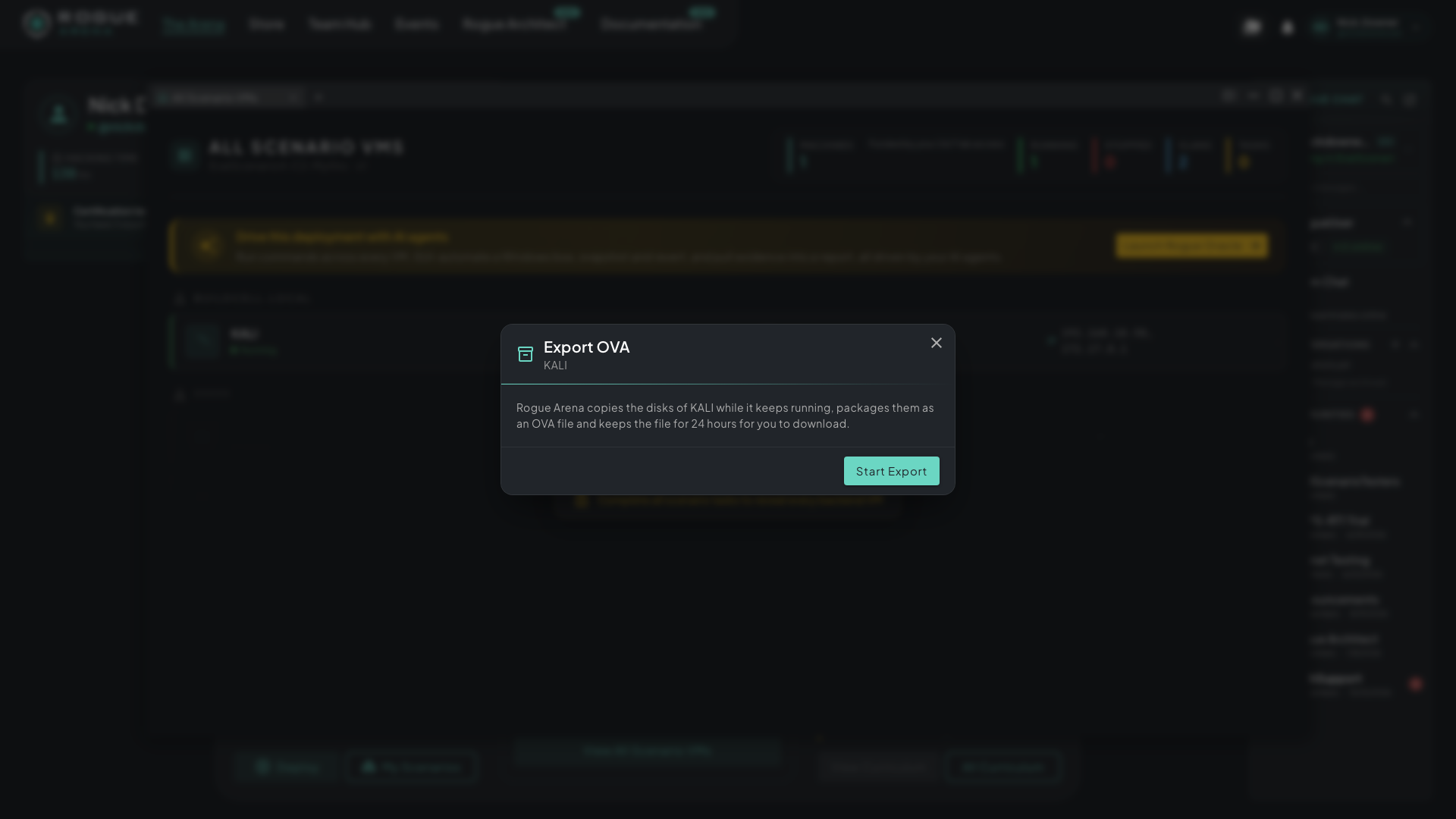 Export OVA confirms which machine you’re exporting before you start.
The export moves through Queued, Building, Copying, and Ready. You can close the dialog or reload the page; the export keeps going. An OVA Export banner in the All Scenario VMs window and on your dashboard shows its progress and how long the file has left.
While the export is queued or building, snapshots, memory capture, and power actions for that VM are paused. Everything else in the deployment works as usual.
Downloading
Section titled “Downloading”When the export is Ready, click Download. Large downloads can be paused and resumed in your browser.
Under Verify download, copy the SHA-256 checksum and compare it with your file to confirm it arrived intact:
# macOS / Linuxshasum -a 256 my-vm-20261028T153000Z.ova# Windows PowerShellGet-FileHash my-vm-20261028T153000Z.ova -Algorithm SHA256The file is deleted 24 hours after it’s ready. Click Delete sooner if you’re done with it. Only you can download your export.
What You Get
Section titled “What You Get”- One
.ovaper VM, named after the machine and the time of export - OVF 1.0 with VMware hardware version 14, a SATA disk controller, and E1000E network adapters
- Network adapters start disconnected, so the VM doesn’t touch your network until you connect it
Things to Know Before Booting
Section titled “Things to Know Before Booting”- The copy is taken live. If the VM has no guest agent, the disks are copied while it runs, and the first boot may run a disk check.
- Windows VMs may need their storage and network drivers changed from VirtIO to VMware before they boot elsewhere.
- Lab networking doesn’t come with it. The VM is exported on its own, so services that depend on other machines in the range won’t reach them.
Limits
Section titled “Limits”- One export per person at a time. A finished export holds your slot until you download it, delete it, or it expires.
- Total disk size up to 200 GiB per VM.
- Hidden VMs and VMs in a certification test can’t be exported.
- Exports are per VM. To take a whole scenario, export each machine.
- If the platform is busy you’ll see “Feature busy, please try again later”. Try again in a few minutes.
- Some servers can’t export. If you see “Export isn’t available for this VM’s server”, that VM can’t be exported.