

The Deployment Toolbar
The lab card on the dashboard shows your active deployment. Under the lab’s name is a row of icons, the deployment toolbar, and under that a row of stats. Hover any icon to see its name.
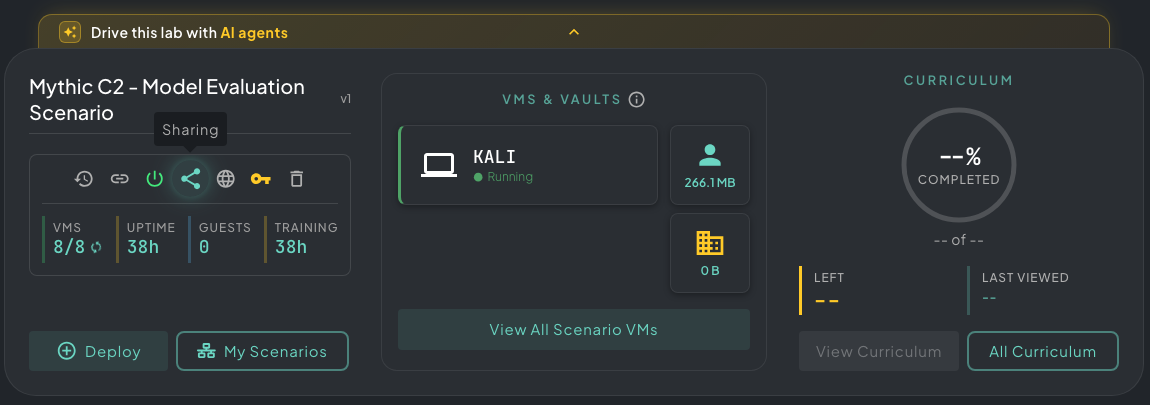 The lab card. The toolbar sits under the lab’s name, and the stats sit under the toolbar.
The Icons
Section titled “The Icons”From left to right:
| Icon | Tooltip | What it does |
|---|---|---|
| Clock with an arrow | Revert scenario to snapshot | Puts every VM back to a clean state. See Reverting the Lab. |
| Link | Deployment guest links | Opens Deployment Guest Links. See Guest Links. |
| Power | Turn off scenario or Turn on scenario | Shuts down or starts every VM. See Turning the Lab Off and On. |
| Share | Sharing | Opens Manage Scenario Sharing. See Invite Guests. |
| Globe | The lab’s internet status | Opens Manage Internet Access. See Internet Access. |
| Key | VPN | Opens VPN Configuration. See VPN Connectivity. |
| Trash can | Delete scenario | Deletes the deployment. See Deleting the Lab. |
Not everyone sees every icon:
- Delete scenario appears only for the lab’s owner.
- The guest link icon appears for the lab’s owner and the team’s Lab Admins.
- Neither appears on Click to Try labs.
- Teammates you’ve shared the lab with see the toolbar without Delete scenario, and their card reads You are in a shared scenario.
- People who joined through a guest link don’t see the toolbar.
Reverting the Lab
Section titled “Reverting the Lab”Click Revert scenario to snapshot to open Revert to Snapshot. Reverting puts every VM in the lab back to a clean state, so anything you changed on the VMs is lost. Two toggles let you go further:
- Reset scenario progress: the victim VMs are locked again and you start the curriculum from the beginning. Question answers are cleared, and past logs are kept.
- Upgrade build version: moves the lab to the latest published version of the scenario. This runs the same VM access check as a new deploy, and you can’t confirm until it passes.
Click Revert to Snapshot to start.
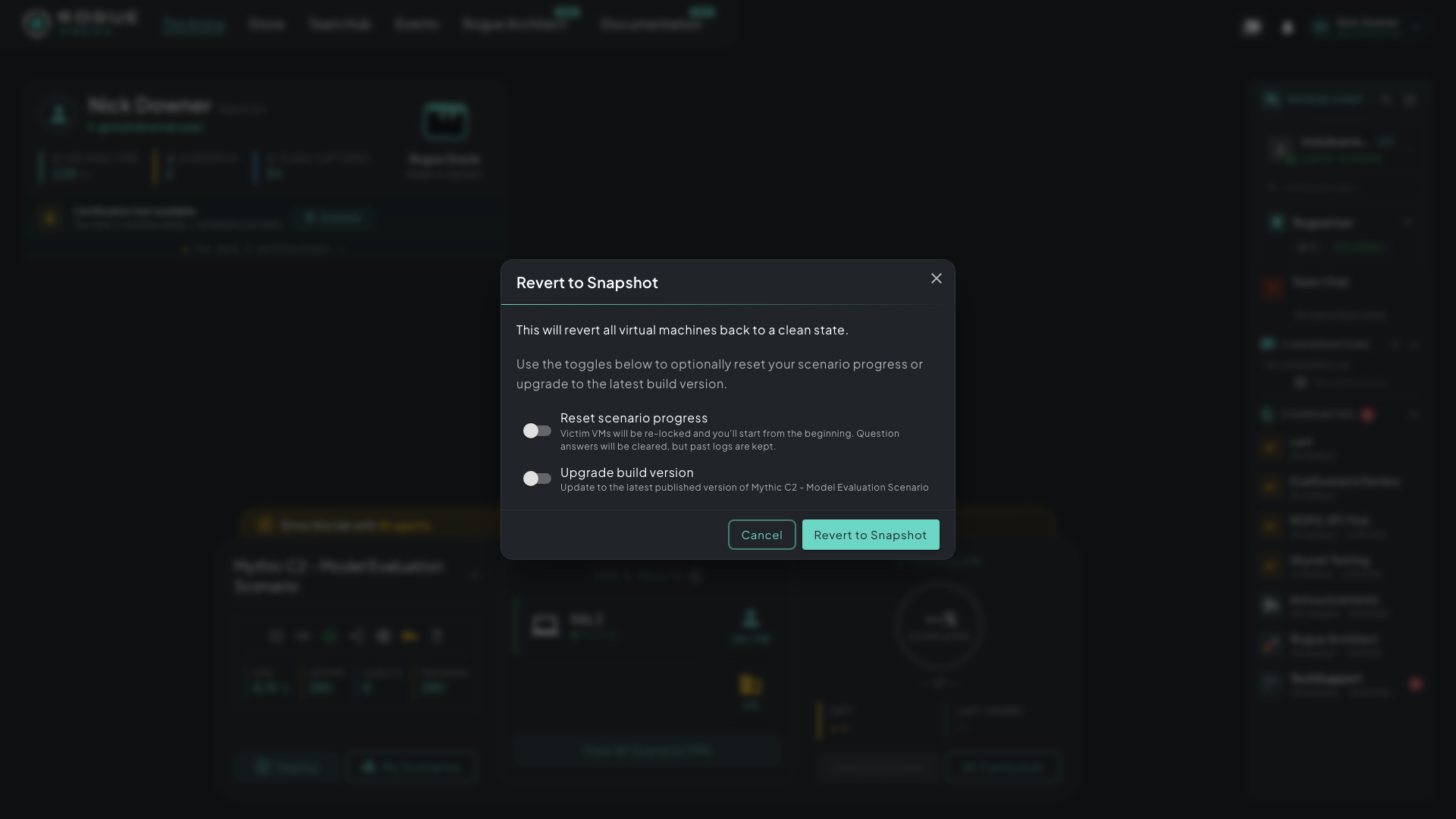 Revert to Snapshot. Leave both toggles off to reset only the VMs.
To go back to a snapshot you took yourself, use Snapshot Management.
Turning the Lab Off and On
Section titled “Turning the Lab Off and On”The power icon’s color shows the lab’s state: green when it’s running, gold while it’s starting, and red when it’s off.
- Click the power icon. Turn Off Scenario opens if the lab is running, and Turn On Scenario if it’s off.
- Click Turn Off or Turn On.
Turning off shuts down every VM. Turning on starts them all again, which can take a few minutes.
Your lab uses VM hours while its VMs run, so turn it off when you step away. Turning off keeps the VMs’ disks and your curriculum progress. The lab also keeps its deployment slot while it’s off; delete it if you need the slot for something else.
Turning on checks VM access first, the same way a new deploy does, and Turn On stays disabled until the check passes.
Internet Access
Section titled “Internet Access”The globe icon’s color shows internet status across the lab’s VMs. Hover it to see the status in words:
- Green: all VMs have internet connected
- Red: all VMs have internet disconnected
- Amber: some VMs are connected and some aren’t
- Grey: no VMs in the lab have internet capability
Click the globe to open Manage Internet Access.
- Click a VM’s row to switch its internet on or off. You can only switch on VMs the scenario allows to have internet.
- Click Apply Changes.
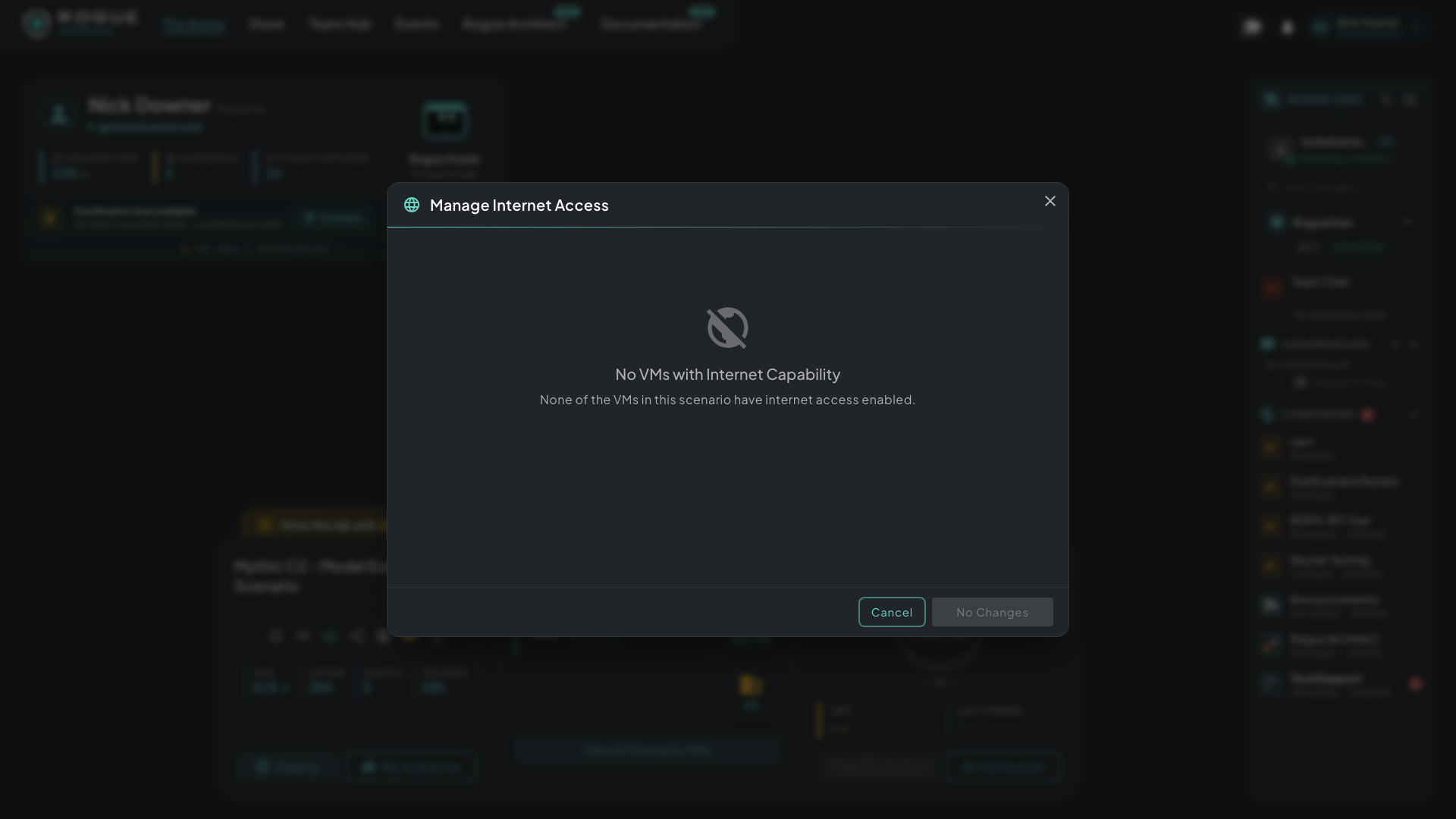 Manage Internet Access. In this lab no VM has internet capability, so there is nothing to switch.
To give internet to a VM that doesn’t have it, click Add Internet to a VM, pick the VM, and click Yes, Add Internet. The VM gets a new network interface, which takes an address from DHCP. Only VMs the scenario allows to have internet are offered.
Adding internet to a VM needs the Deployed Internet permission, which Rogue Arena staff grant. Without it the button is greyed out.
Deleting the Lab
Section titled “Deleting the Lab”Click Delete scenario to open Delete Scenario Deployment. It shows the scenario, its uptime, and how many shared users are connected, if any. Click Delete Scenario to confirm. Deleting frees the lab’s deployment slot.
Rogue Guardian
Section titled “Rogue Guardian”Rogue Guardian checks the health of every VM in the lab. Its icon sits next to the VM count:
- A slowly spinning icon (tooltip Rogue Guardian is ACTIVE) means nothing is wrong. It’s gold until the first check finishes.
- A red error icon (tooltip Rogue Guardian state: UNHEALTHY) means one or more VMs failed a check.
Click the icon to open Rogue Guardian. It shows the deployment status: HEALTHY, UNHEALTHY, or PENDING before the first check. When the lab is healthy, it also shows when the last full check ran. When it’s unhealthy, it lists the affected VMs. Rogue Arena administrators are emailed automatically, and you can keep working.
The icon is hidden while the lab is off.
The Stats
Section titled “The Stats”| Stat | What it shows |
|---|---|
| VMS | Running VMs out of the total, for example 8/8. When the lab is off, this reads STATUS Off. |
| UPTIME | Hours since the lab last started, rounded up. 0 while the lab is off. |
| GUESTS | How many teammates the lab is shared with. |
| TRAINING | Hours in the current run, the same figure as UPTIME. |