

Your Profile
Your profile holds your account details and everything tied to your account. To open it, click your name in the top-right and choose User Profile, or go to arena.roguelabs.io/user-profile.
Every account has a profile, except learner accounts opened from a school or company LMS (cmi5). Those accounts stay on their course and don’t see User Profile.
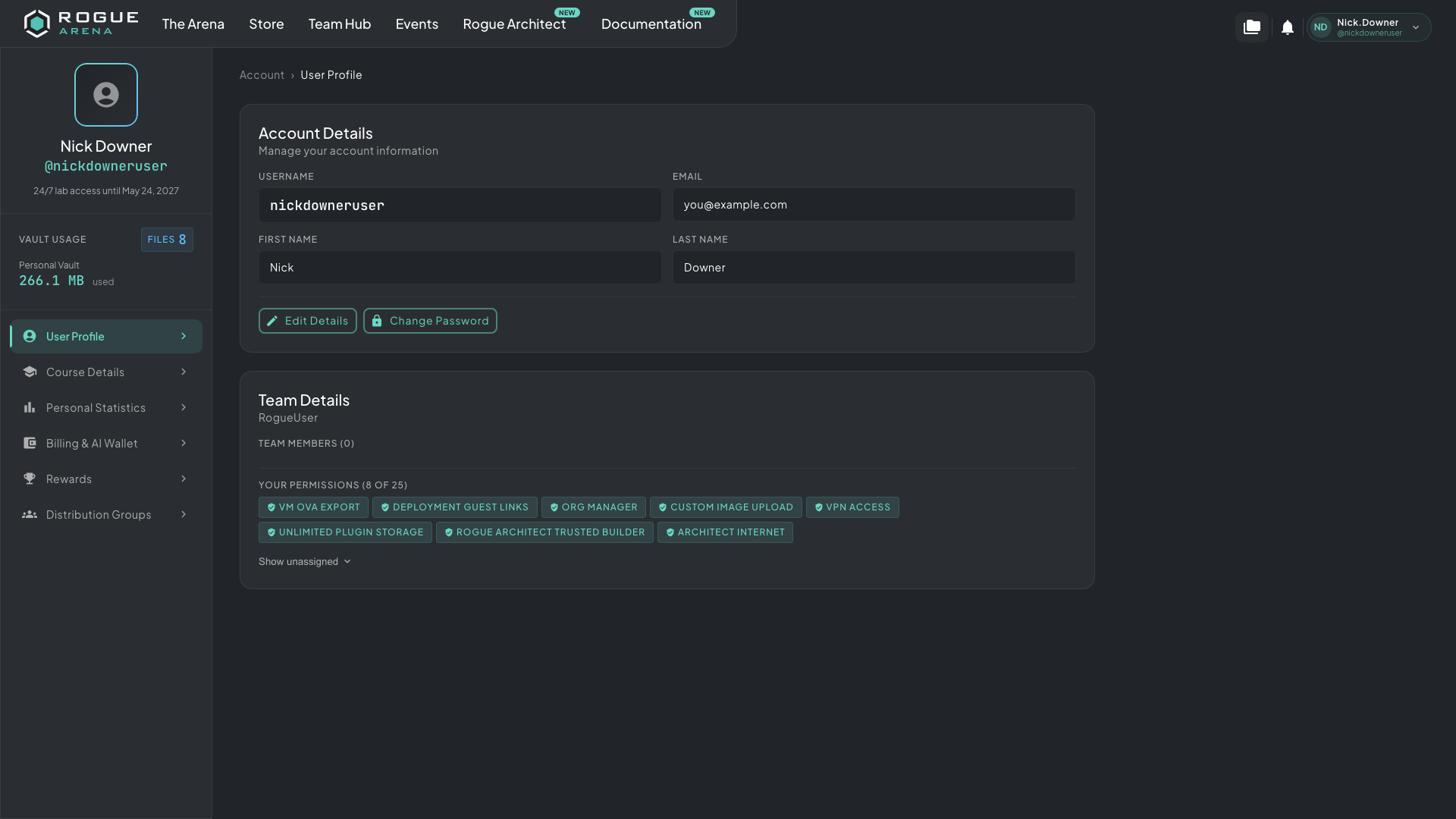 The User Profile section. The sidebar shows your name, any 24/7 lab access, your vault usage, and the other sections.
The Sidebar
Section titled “The Sidebar”The top of the sidebar shows your name and username. Below them:
- 24/7 lab access until a date appears when staff or a course voucher gave you 24/7 lab access. See VM Hours and Lab Plans.
- Vault Usage shows how many files are in your Personal Vault and how much space they use.
Then come the profile’s sections:
| Section | What’s there |
|---|---|
| User Profile | Your account details, email preference, and team |
| Course Details | Your courses, progress, certificates, and certification vouchers |
| Personal Statistics | Lifetime totals for the scenarios you’ve played |
| Billing & AI Wallet | Your Lab plan, VM hours, AI Wallet, usage, and payments. See Billing and AI Wallet |
| Rewards | Rogue Rewards points, your referral link, and reward offers. See Rogue Rewards and Invites |
| Distribution Groups | Groups you belong to and invitations to join one |
On a phone, pick a section from the menu at the top of the page instead.
Account Details
Section titled “Account Details”Account Details shows your Username, Email, First Name, and Last Name.
- Edit Details opens Edit Profile. Change your username, first name, or last name, then click Save. For username rules, see Changing Your Username.
- Change Email Address, inside Edit Profile, sends you an email with a link to set a new address.
- Change Password sends you an email with a link to set a new password.
If you sign in with Google, Microsoft, or GitHub, your provider manages your email and password. Change Password and Change Email Address are replaced by a note such as Your email and sign-in are managed by Google. See Accounts That Use Google, Microsoft, or GitHub.
Email Preference
Section titled “Email Preference”The Stay in the loop card sets whether Rogue Labs emails you about early-access opportunities, beta platform updates, new courses, Rogue Labs news, and occasional offers.
- Check the box to get these emails, or clear it to stop them.
- Click Save email preference.
The emails are optional, and you can change your choice at any time. This setting covers only the updates you signed up for through Rogue Arena. Subscriptions you made elsewhere are managed separately.
Until you’ve made a choice, the same checkbox appears in a Stay in the loop window after you sign in. Check it if you want the emails, then click Continue. You can change your answer later on this card.
If your address is unsubscribed or blocked by our email provider, the card says delivery is paused. Saving the preference doesn’t override that.
Team Details
Section titled “Team Details”Team Details names your team, or says You are not assigned to a team.
On a team, you also see:
- Team Members: everyone on your team. Hover over a name to see their username and any certifications they’ve passed.
- Your Permissions: the permissions you have, out of all permissions. Hover over one to read what it allows. Click Show unassigned to see the ones you don’t have.
Your team’s Org Manager sets permissions. See Team Permissions.
Course Details
Section titled “Course Details”Course Details counts your courses: Enrolled, Completed, Certified, In Progress, and Vouchers.
Enrolled Courses lists each course with your progress. Click Download on a course to get its Certificate of Completion once you finish the course, or its Passing Certification once you pass the exam.
Certification Vouchers lists your exam vouchers with the Test Outcome, Voucher Status, and Expiration of each.
Personal Statistics
Section titled “Personal Statistics”Personal Statistics shows your lifetime totals: completion rate, Hacking Time, Completed, Unlocks, and Mastered. Below them is each scenario you can deploy, marked Completed, In Progress, or Not Started, with how many of its tasks you’ve finished.
Distribution Groups
Section titled “Distribution Groups”A distribution group gives a chosen set of people, possibly from different teams, access to the same scenarios. My Groups lists the groups you belong to. Click a group to see its details.
Invitations to join a group appear at the top of the list. Click Accept or Decline.
Creating a group with New Group needs the Org Manager permission. See Permissions and Cloning for sharing scenarios with a group.
Notifications
Section titled “Notifications”The bell in the top bar opens Notifications, a list of messages from Rogue Arena. Click Open on a notification to see more, click its dismiss icon to remove it, or click Dismiss All to clear the list.
Notifications have no settings of their own. The only email setting is the Stay in the loop card above.