

Team Permissions
The Team Roster tab in Team Hub lists everyone on your team and the permissions each person holds. Org Managers can change team members’ permissions and invite new people from the same tab.
Required role: Org Manager
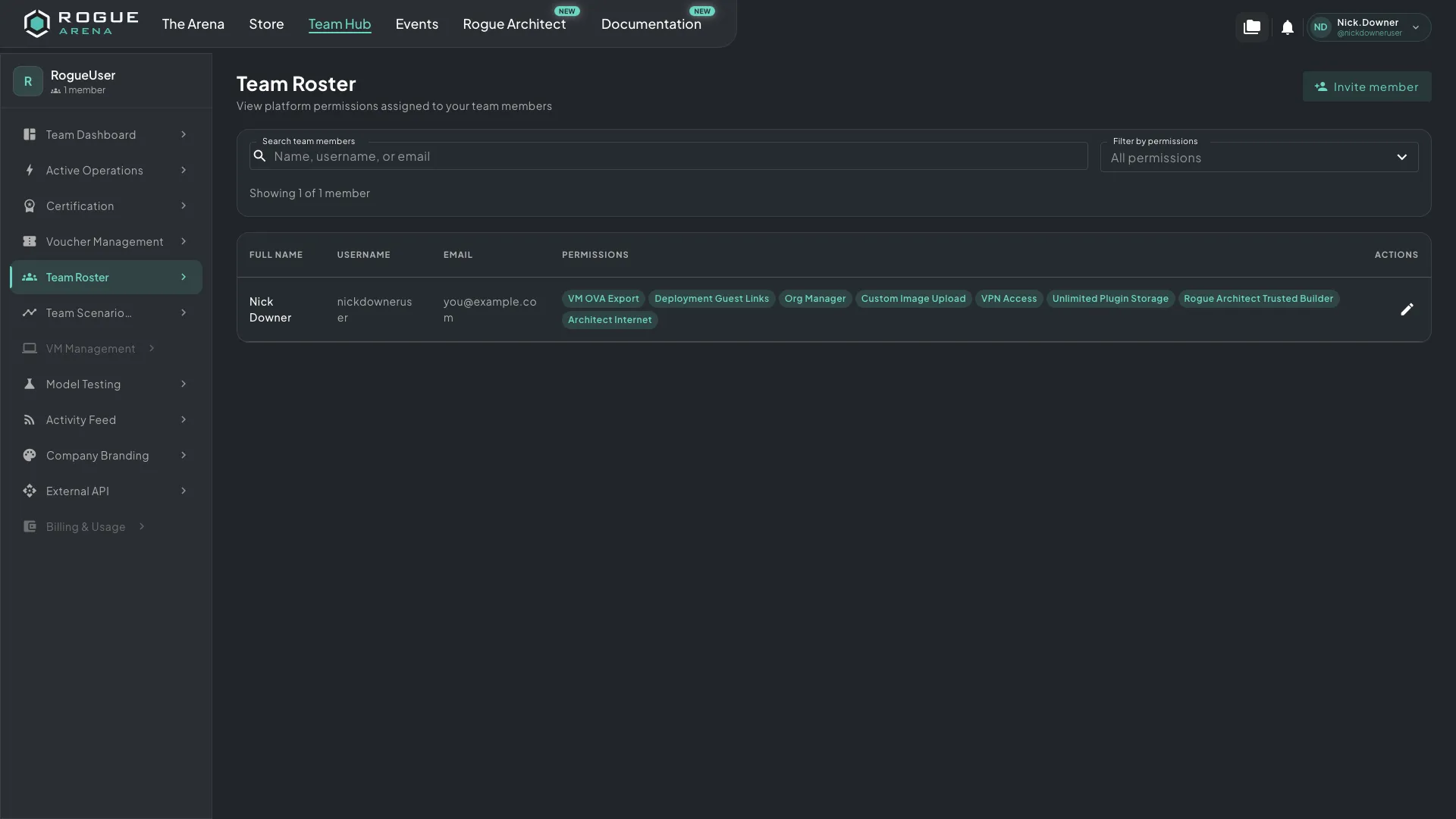 The Team Roster tab lists every team member and the permissions each one holds.
Permissions Table
Section titled “Permissions Table”The main view is a table with:
- Full Name: the team member’s name.
- Username: the team member’s username.
- Email: the team member’s email address.
- Permissions: a badge for each permission the person holds. Hover over or focus a badge to see what that permission allows.
- Actions: an edit button for each member, shown to Org Managers.
Use Search team members to find people by name, username, or email, and Filter by permissions to show only members who hold every permission you pick. If your team has disabled accounts, turn on Show disabled to include them.
Change a Member’s Permissions
Section titled “Change a Member’s Permissions”- Click the edit (pencil) button in the member’s row.
- Open the Permissions tab.
- Turn on or off the permissions you want to change.
- Click Save permissions.
Changes apply within a minute, when the person’s session refreshes. Making someone an Org Manager asks you to confirm first. You can’t remove Org Manager from your team’s last Org Manager, so make someone else an Org Manager first.
The same dialog’s Profile and Account tabs let you rename a member, disable or re-enable their account, send a password reset, or remove them from the team. Members who sign in with Google, Microsoft, or GitHub have no password reset; their Account tab says so, for example “Their email and sign-in are managed by Google.”
To add someone, click Invite member and enter their email address. Pending invites appear in the roster with a status: Sending…, Invitation sent, Expired, Delivery failed, Not sent: already registered, or Cancelled: already registered. Use the row’s Resend, Edit, and Revoke buttons to send an invite again, fix its email address, or cancel it; an already-registered row has Remove in place of Revoke. Each person can send 20 invites, and your team 50, in any 24 hours; resends and email fixes count toward these limits. Invites only go to new accounts: an address that already has a Rogue Arena account is refused. Each person can belong to only one team.
Permissions
Section titled “Permissions”| Permission | Granted by | What it allows |
|---|---|---|
| Org Manager | Org Manager | Can open the manager-only Team Hub tabs (Active Operations, Certification, Voucher Management, Team Roster, Team Scenario Progress, Activity Feed, Company Branding), change team members’ permissions, invite people and manage the accounts the team invited, and create distribution groups |
| Lab Admin | Org Manager | Can open every team member’s labs and VMs, manage the team’s deployments and events, manage and take ownership of teammates’ Rogue Architect scenarios and plugins, lock, unlock, and work in locked team-vault folders, and delete, move, or rename teammates’ media. See Team VM Sharing |
| API Key Use | Org Manager | Can create personal API keys for the External API. Each key acts only as the person who created it |
| Deployment Guest Links | Org Manager | Can create timed guest links for eligible running deployments |
| Block Self-Deploy | Org Manager | Stops the person from deploying scenarios themselves and hides the deployable catalog. They keep scenarios already deployed to them, and admins can still deploy for them |
| Billing Admin | Rogue Labs | Can open the Billing & Usage tab, which shows how many of the team’s Deployment slots are in use. To get more slots, email info@roguelabs.io to request a quote. Grants no deployment or team-management access |
| Custom Image Upload | Rogue Labs | Can upload custom machine images (OVF/OVA) and import them |
| VM OVA Export | Rogue Labs | Can export VMs from deployments they control as OVA files |
| Rogue Architect Trusted Builder | Rogue Labs | Can publish plugins and scenarios to the Rogue Arena community |
| Architect Internet | Rogue Labs | Can turn on internet access inside Rogue Architect build environments |
| Deployed Internet | Rogue Labs | Can turn on internet access on deployed published scenarios |
| Unlimited Plugin Storage | Rogue Labs | Can use unlimited storage for Rogue Architect plugins |
| VPN Access | Rogue Labs | Can use VPN connections in deployed scenarios |
| Media Upload | Rogue Labs | Can upload files to the platform’s media storage |
| Idle Shutdown Exempt | Rogue Labs | The person’s VMs aren’t shut down automatically for inactivity |
Retired Permissions
Section titled “Retired Permissions”Some older permissions were folded into broader ones. If a member still holds one, hovering over its badge shows “Now part of … No longer assignable.”
- Team Invites & Accounts and Distribution Group Admin are now part of Org Manager.
- Vault Admin, Architect Admin, and Media Admin are now part of Lab Admin.