

Voucher Management
The Voucher Management tab lets Org Managers hand out and track entitlements across their team. Rogue Labs staff create the vouchers and add them to your organization’s entitlement pool.
Required role: Org Manager
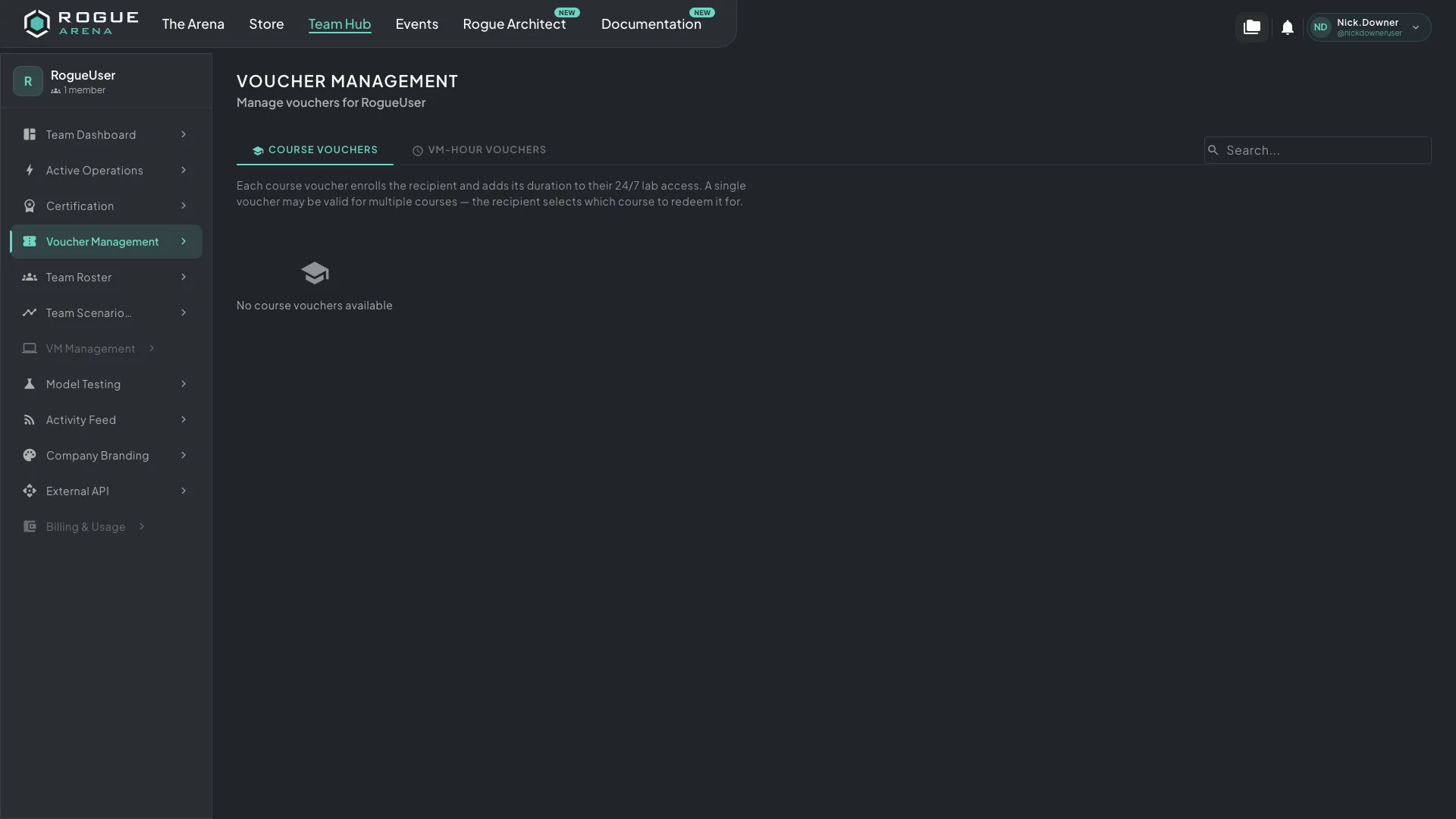 Voucher Management, where you assign course vouchers and VM-hour vouchers from your organization’s entitlement pool.
Voucher Types
Section titled “Voucher Types”Your organization’s entitlement pool can hold two types of vouchers:
Course Vouchers
Section titled “Course Vouchers”A course voucher enrolls a team member in a course and adds its duration to their 24/7 lab access.
What you see:
- The courses the voucher is valid for
- Duration, shown as “N days of 24/7 lab access”
- Expiration date (if set)
- Assignment status
To assign a course voucher:
- Find an available (unassigned) voucher in the list.
- Click it to open its details, then click Assign to Team Member.
- Select the team member to assign it to. You can also pick yourself; you’re listed first, marked “(you)”.
- Choose the course to enroll them in, from the voucher’s valid courses.
- Confirm the assignment.
Once you assign the voucher, the team member is enrolled in the course automatically, and the voucher adds its duration to their 24/7 lab access.
VM-Hour Vouchers
Section titled “VM-Hour Vouchers”A VM-hour voucher adds its hours to a team member’s VM hours. It doesn’t enroll them in a course.
What you see:
- VM hours
- Status
- Who it’s assigned to
- Expiration date (if set)
To assign a VM-hour voucher:
- Open the VM-Hour Vouchers tab and find an available voucher.
- Click it to open its details.
- Click Assign to Team Member and select the team member, or yourself.
- Click Assign.
The voucher’s hours are added to the team member’s VM hours.
Voucher Statuses
Section titled “Voucher Statuses”| Status | Course Vouchers | VM-Hour Vouchers |
|---|---|---|
| Available | Ready to assign | Ready to assign |
| Redeemed | User enrolled in course | n/a |
| Applied | n/a | Applied to a team member |
| Expired | Past expiration date | Past expiration date |