

Start with a Prompt
The fastest way to your first lab is to describe it. Type what you want on the public start page, sign in or create an account, and Rogue Oracle starts building it as a new scenario in Rogue Architect. You don’t need an account to write the prompt.
Writing Your Prompt
Section titled “Writing Your Prompt”- Go to arena.roguelabs.io/start.
- Under What lab will you build?, describe the lab, range, or course you want. Or click one of the examples under the box to fill it in.
- To give Oracle more to work with, click the paperclip (Attach files) and add notes, Active Directory dumps, or a picture of a scenario. You can attach up to 5 files, 100 MB each.
- Click Start building, or press Enter.
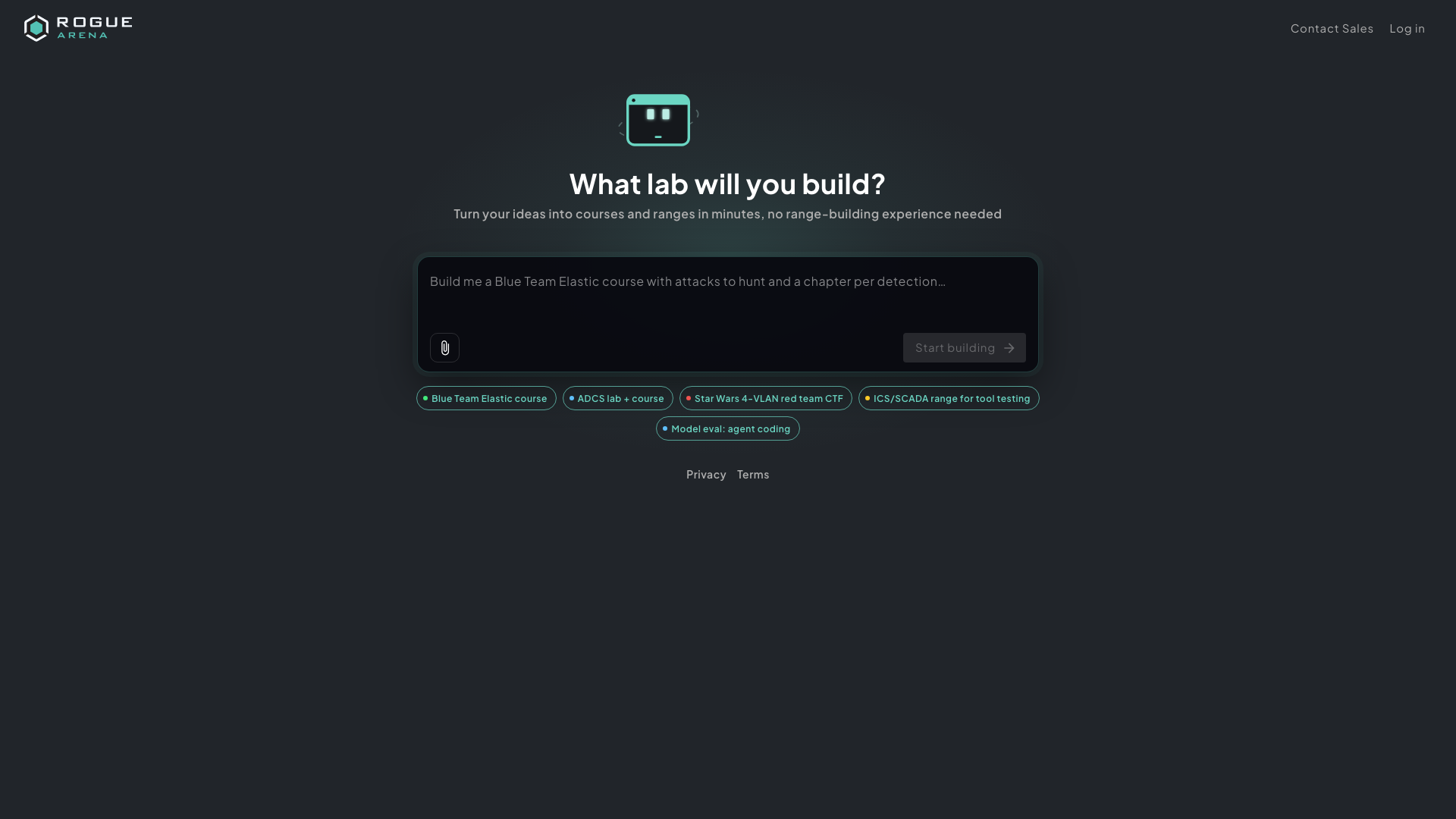 The start page. Click an example to fill the box, or write your own prompt.
The page tells new visitors that their first prompt is free. After that, Oracle uses AI credits from your AI Wallet.
Contact Sales and Log in sit in the top-right if you’d rather talk to us first or go straight to the platform.
Signing In
Section titled “Signing In”After you click Start building, you go to the sign-in page. It shows your prompt with the banner Your prompt was saved! Create an account or log in to start building.
Sign in, or click Register to create an account. See Create an Account and Sign In for each option.
What Happens Next
Section titled “What Happens Next”Once you’re signed in, a short screen picks up where you left off:
- Picking up your prompt
- Creating your scenario
- Opening Rogue Architect
A brand-new account may also see Welcome to Rogue Arena! with its welcome reward. If that reward includes AI credit, you see Adding your AI credit… while it lands. It usually takes a few seconds; click Continue if you don’t want to wait.
Rogue Architect then opens on a new scenario named after the first line of your prompt. The Oracle panel opens with your prompt and files already sent, and Oracle starts designing the lab. From here, follow Building with Oracle.
If Your Prompt Doesn’t Open
Section titled “If Your Prompt Doesn’t Open”| You see | What it means |
|---|---|
| That prompt has expired | The prompt is older than seven days, or another account already picked it up. Click Start again to write a new one. |
| Your prompt is saved | This account can’t create Rogue Architect scenarios. The prompt stays saved for seven days, so come back to the same link from an account that can, or click Contact Sales. |
| Something went wrong | Click Try again. |
If saving fails on the start page itself, check your connection and click Start building again.